Video editing used to be a long, painful process that took days of staring at a computer screen. However, in 2026, artificial intelligence has completely flipped the script for YouTubers and podcasters. Today, we are looking at the two heavy hitters in the space: Gling and Opus Clip. While both tools save you hours of work, they actually do very different things. Specifically, one helps you fix your mistakes, while the other helps you go viral. Consequently, choosing the right one depends entirely on your goals.
In this guide, we will break down the features, pricing, and professional workflows for both tools. Furthermore, we will show you exactly how to use them with high-end software like Adobe Premiere Pro and DaVinci Resolve.
Table of Contents
- What is Gling? The Master of the Rough Cut
- What is Opus Clip? The Viral Video Factory
- The Core Similarities: Where AI Shines
- The Big Differences: Precision vs. Reach
- Advanced Workflow: Using Gling with Premiere and DaVinci
- Advanced Workflow: Using Opus Clip with Premiere and DaVinci
- Deep Dive: Pricing and Value in 2026
- Strategic Use Cases: Which One Do You Need?
- The Future of Content: AI and Your Channel
- Summary and Final Verdict
What is Gling? The Master of the Rough Cut
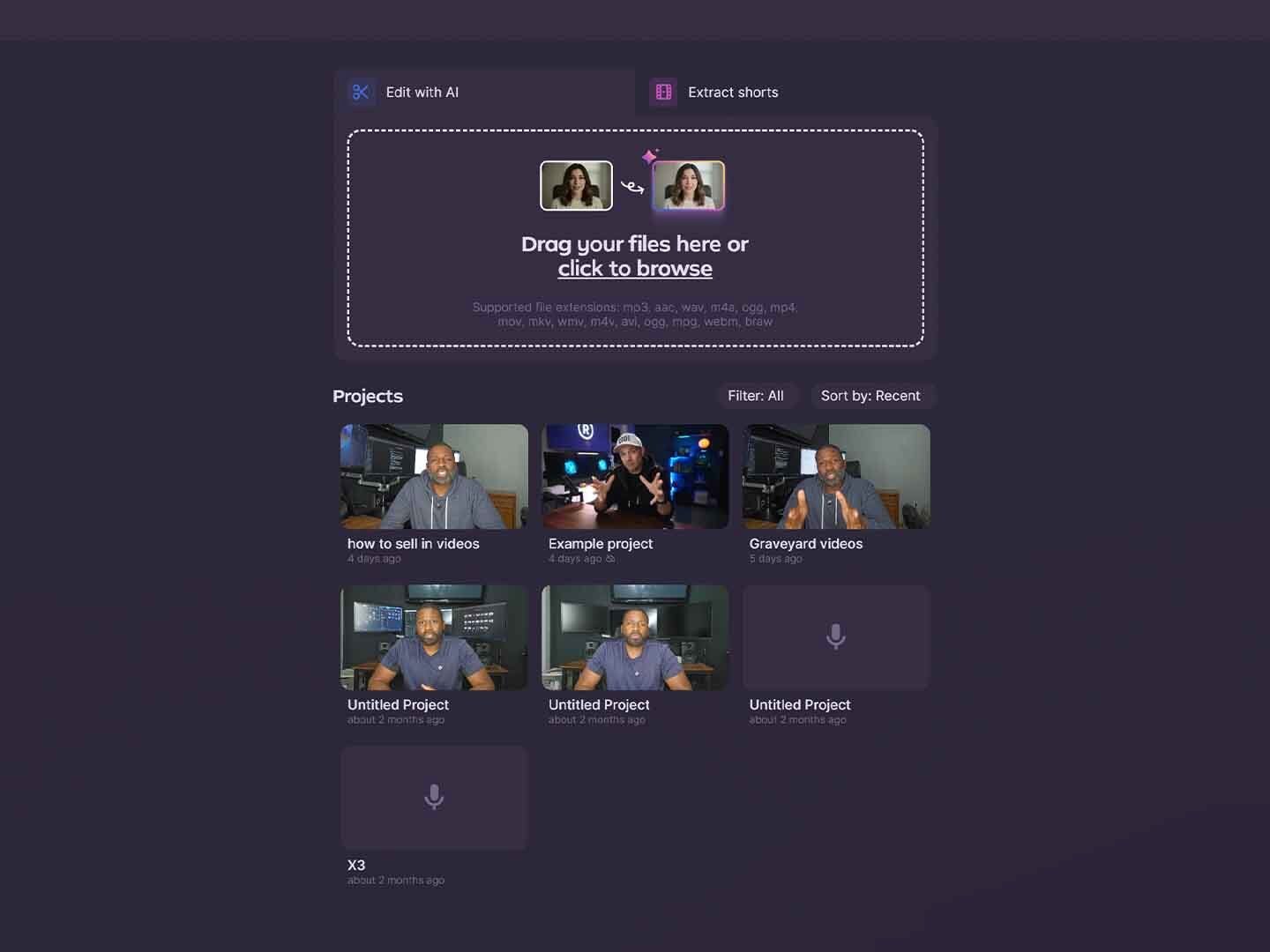
To start with, let’s talk about Gling. If you have ever recorded a video and fumbled your words five times in a row, Gling is your new best friend. It is designed to take a messy, raw recording and turn it into a clean “rough cut” in minutes.
Key Features of Gling in 2026
- Automatic Bad Take Removal: Gling’s AI understands when you are repeating yourself. Consequently, it keeps only the best version of your sentence and deletes the others.
- Silence and Filler Word Detection: It instantly finds and removes “umms,” “ahhs,” and those long, awkward pauses where you were checking your notes.
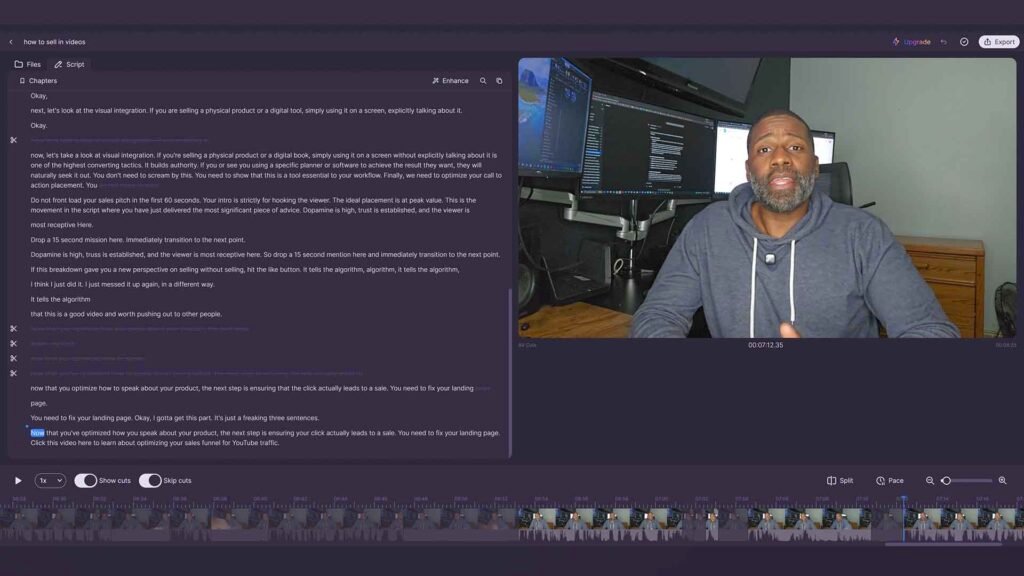
- Text-Based Editing: You don’t have to look at a timeline. Instead, you can edit your video by simply deleting words in the transcript.
- Multi-Camera Sync: In 2026, Gling can automatically align multiple camera angles. Therefore, you can edit multi-cam podcasts as easily as a single-camera vlog.
- Jump-Cut Smoothing: To make your edits look professional, Gling can add subtle zooms. As a result, the “jump” between cuts feels intentional and dynamic.
Ultimately, Gling is about saving time during the boring part of editing. It removes the “garbage” so you can focus on the creative stuff.
What is Opus Clip? The Viral Video Factory
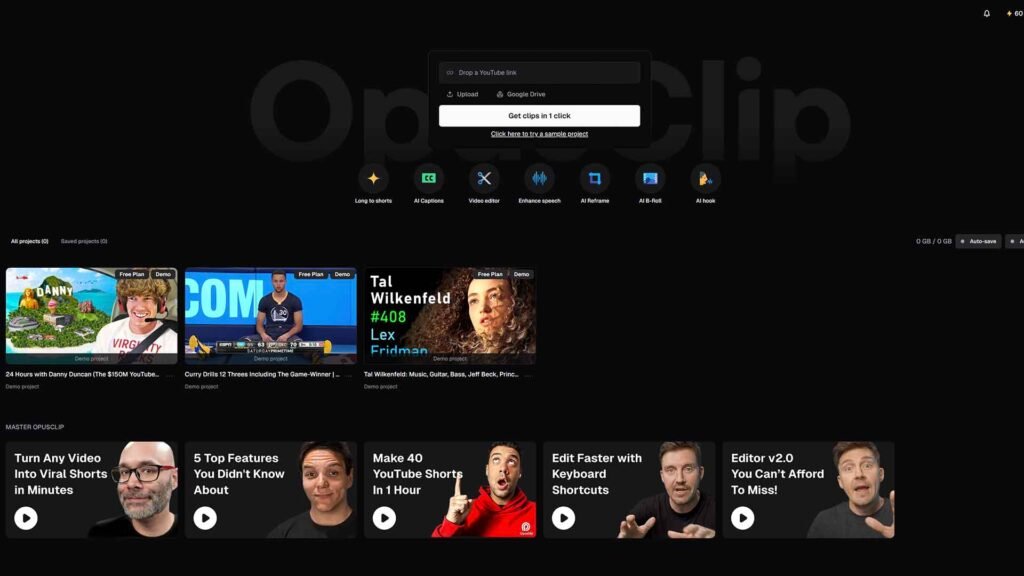
On the other hand, we have Opus Clip. While Gling helps you make your main video, Opus Clip is obsessed with social media. It takes your long-form content and chops it up into short, vertical videos for TikTok, Instagram Reels, and YouTube Shorts.
Standout Features of Opus Clip for 2026
- ClipAnything AI: This feature analyzes your entire video to find the most interesting moments. It looks for high-energy speech and emotional shifts.
- Virality Score: Opus gives every clip a score from 0 to 100. This tells you exactly how likely that clip is to trend based on current 2026 data.
- AI B-Roll Integration: In 2026, Opus can automatically overlay relevant stock footage or AI-generated visuals. Consequently, your talking-head clips never feel boring.
- Active Speaker Detection: It reframes your wide 16:9 video into a vertical 9:16 format. Most importantly, it keeps the speaker’s face perfectly centered at all times.
- AI Eye-Contact Correction: If you were looking at your script instead of the lens, Opus can digitally adjust your eyes to look directly at the viewer.
In fact, many creators use Opus Clip to turn one single podcast into 15 different pieces of content. This is a key part of how to go viral on YouTube today.
The Core Similarities: Where AI Shines
Although they serve different purposes, both tools share some impressive DNA. For instance, both utilize cloud-based processing power to handle heavy 4K files. Furthermore, they both offer incredibly high transcription accuracy in over 20 languages.
Shared Benefits:
- Massive Time Savings: Both tools can reduce your editing time by up to 80%.
- Professional Export Options: You aren’t stuck inside their apps. Specifically, both allow you to export XML and SRT files for professional software.
- User-Friendly Interfaces: You don’t need to be a tech genius to use them. Both are designed with a “drag and drop” philosophy.
- Audio Enhancement: Each tool includes AI-driven noise reduction to make your microphone sound like a million bucks.
The Big Differences: Precision vs. Reach
Understanding the difference between these two is vital. As AI has exploded on YouTube, the market has split into “clean-up” tools and “repurposing” tools.
| Feature | Gling AI | Opus Clip |
| Primary Goal | Cleaning up raw footage (Rough Cut) | Creating viral social clips (Repurposing) |
| Video Format | Mostly Horizontal (16:9) | Mostly Vertical (9:16) |
| Creative Control | High (You choose what to keep) | Automated (The AI picks the best parts) |
| Visual Style | Clean and minimal | Flashy with captions and B-roll |
| Best For | YouTubers, Educators, Solo Creators | Podcasters, Streamers, Agencies |
To put it simply, Gling is the vacuum cleaner that tidies your house. Opus Clip is the real estate agent who takes beautiful photos of your house to sell it to the world.
Advanced Workflow: Using Gling with Premiere and DaVinci
For pro editors, Gling is just the first step in a larger pipeline. Here is how you integrate it with the industry standards.
The Adobe Premiere Pro Step-by-Step
- Upload: Drop your raw footage into the Gling desktop app.
- Clean: Let the AI remove the “umms” and bad takes. Review the transcript to make sure the flow is perfect.
- Export XML: Click the export button and select “Adobe Premiere Pro (XML).”
- Import to Premiere: Open Premiere and import that XML file.
- The Result: You will see a sequence with hundreds of cuts already made. From here, you can add your music and color grading without having to do the manual “chopping.”
The DaVinci Resolve Step-by-Step
- Follow steps 1-2 above.
- Export for Resolve: Choose the “DaVinci Resolve” export option.
- Import Timeline: In Resolve, go to
File > Import > Timeline. - Advanced Polish: Because Gling has done the heavy lifting, you can spend more time in the Color Tab or using Fairlight for audio mixing.
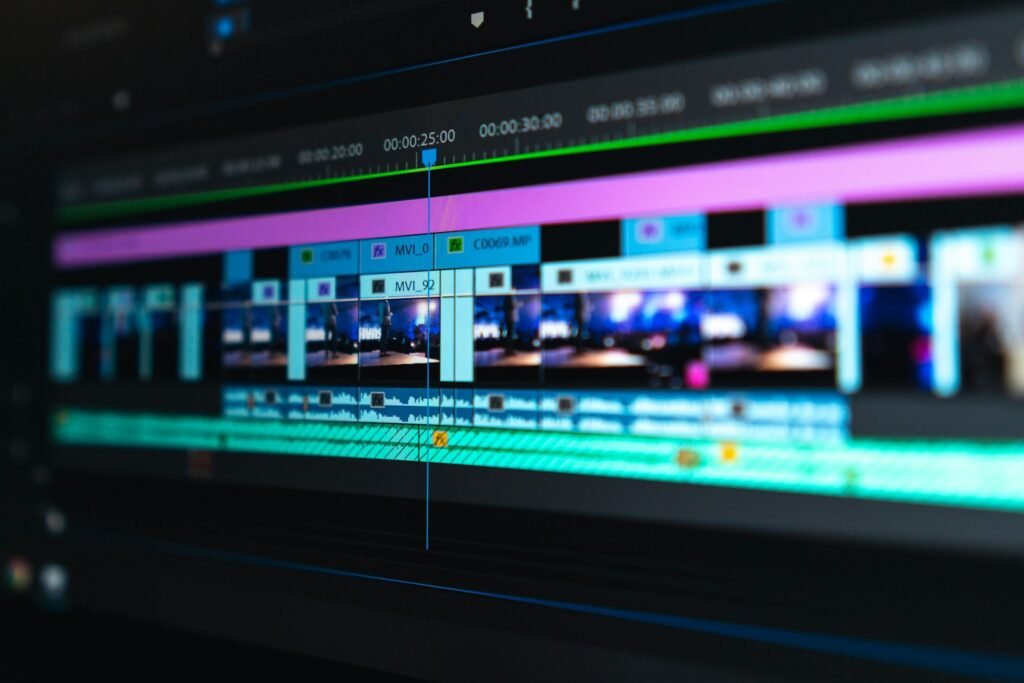
Advanced Workflow: Using Opus Clip with Premiere and DaVinci
Opus Clip isn’t just a “one-click” wonder anymore. In 2026, their Pro plan allows for deep NLE integration.
Fine-Tuning Viral Shorts in Premiere
Sometimes, the AI picks a great clip but makes the caption too big.
- Pick your Clips: Let Opus generate 10 shorts from your video.
- Export to XML: On the Pro plan, you can download the project as an XML.
- Import to Premiere: This brings the specific clip, the reframing data, and the transcript into your timeline.
- Edit: You can now manually move the captions, change the font, or swap the AI B-roll for your own custom footage.
High-End Finishing in DaVinci Resolve
If you are using some of the best budget cameras in 2026, you likely want to color grade your shorts to look cinematic.
- Workflow: Export the XML from Opus and bring it into DaVinci. Use the “Magic Mask” tool to separate yourself from the background, even on a vertical clip. This gives your social media content a “high-budget” feel that pure AI tools can’t match.
Deep Dive: Pricing and Value in 2026
Budgeting is a major part of running a successful channel. Therefore, let’s look at what these tools will cost you.
Gling Pricing
- Free Trial: You get 1 hour of video processing for free every month. However, exports will have a watermark.
- Plus Plan ($20/mo): 10 hours of video, no watermarks, and full NLE export.
- Pro Plan ($40/mo): 30 hours of video and priority processing. This is perfect for daily vloggers.
Opus Clip Pricing
- Free Plan ($0): 60 credits per month. Great for testing, but includes watermarks.
- Starter Plan ($15/mo): 150 credits (2.5 hours). No watermarks and social media auto-posting.
- Pro Plan ($29/mo): 300 credits and the crucial Export to XML feature. This is the plan we recommend for professionals.

Strategic Use Cases: Which One Do You Need?
Ultimately, the choice comes down to your content type. Specifically, ask yourself: “Where is my biggest bottleneck?”
Case A: The Educational YouTuber
If you record 20-minute tutorials, you probably make a lot of mistakes. Consequently, you spend hours cutting out “dead air.” Gling is your winner here. It allows you to produce high-quality long-form content twice as fast.
Case B: The High-Volume Podcaster
If you record an hour-long interview every week, your goal is to get “eyes” on that video. Opus Clip is your winner here. It will find the “money moments” and spread them across TikTok and Reels, driving traffic back to your main channel.
Case C: The Professional Creator
In fact, most top-tier creators in 2026 use a “Stack.” They use Gling to create the clean master video and then run that master through Opus Clip to generate social clips. This “Double AI” workflow is the fastest way to grow a brand today.
The Future of Content: AI and Your Channel
As we look toward the end of 2026, AI isn’t just a trend; it’s a requirement. The competition is too fast for manual editing to keep up. However, the most successful creators are those who use AI as a tool, not a replacement for their personality.
Whether you are using the latest budget cameras or a high-end cinema rig, these AI tools allow you to stay consistent. Consistency is the only way to beat the algorithm. Therefore, investing in your workflow is just as important as investing in your gear.
Summary and Final Verdict
In the battle of Gling vs. Opus Clip, the real winner is the creator. Gling is the ultimate tool for anyone who records “talking head” videos and wants to skip the tedious rough-cut process. On the other hand, Opus Clip is the king of social media repurposing. If you want to save your sanity while editing, go with Gling. If you want to grow your audience across every platform, go with Opus Clip.
Want to stay ahead of the curve in the AI video revolution? Make sure to subscribe to the YT Torials newsletter for deep-dive tutorials delivered straight to your inbox. Also, don’t forget to follow the YT Torials YouTube page for live demos of these workflows!
Sign up to the YT Torials Newsletter
Follow YT Torials:


No responses yet