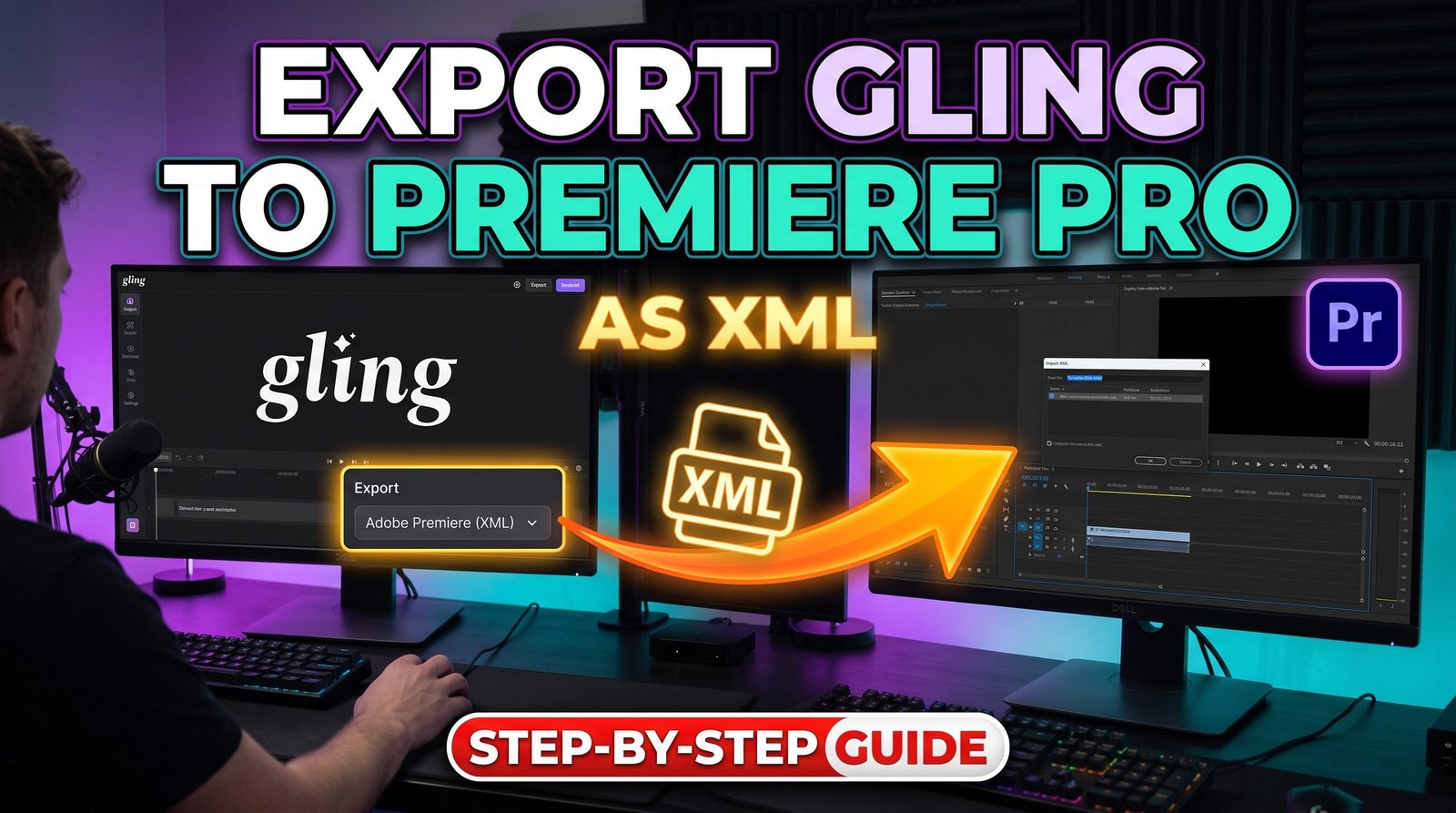
If you are reading this, you already know that Gling is a great tool to use for editing. But you may not know how much better an XML file is over just exporting an audio file or video file to Premiere Pro. I’ve done both, and I’m going to tell you why you should switch over to XML here—showing you step-by-step how to export Gling to Premiere Pro, edit clipped words on the fly, and prevent technical issues like Variable Frame Rate (VFR) audio drift.
Table of Contents
- Before You Begin: Web App vs. Desktop App, Plan Requirements & VFR Check
- Step-by-Step: How to Export Gling to Premiere Pro as XML
- Troubleshooting & Multi-Track Audio Routing
- Why You Should Export XML Instead of MP3 or MP4
- Why XML Changed My Own Workflow
- Comparison Breakdown: XML vs. MP3/MP4 Exports
- Optimizing Your AI Video Editing Workflow
- Summary & Next Steps
Before You Begin: Web App vs. Desktop App, Plan Requirements & VFR Check
Before jumping into the export steps, there are a few important setup requirements and file checks to keep in mind regarding Gling’s XML feature:
- Paid Subscription Required: Exporting XML/EDL timeline files for Premiere Pro, Final Cut Pro, or DaVinci Resolve requires an active paid Gling plan (Plus, Pro, or Elite). The free tier only allows you to export watermarked MP4 or MP3 files. If you’re ready to unlock timeline exports and non-destructive cutting, you can try the paid version of Gling here.
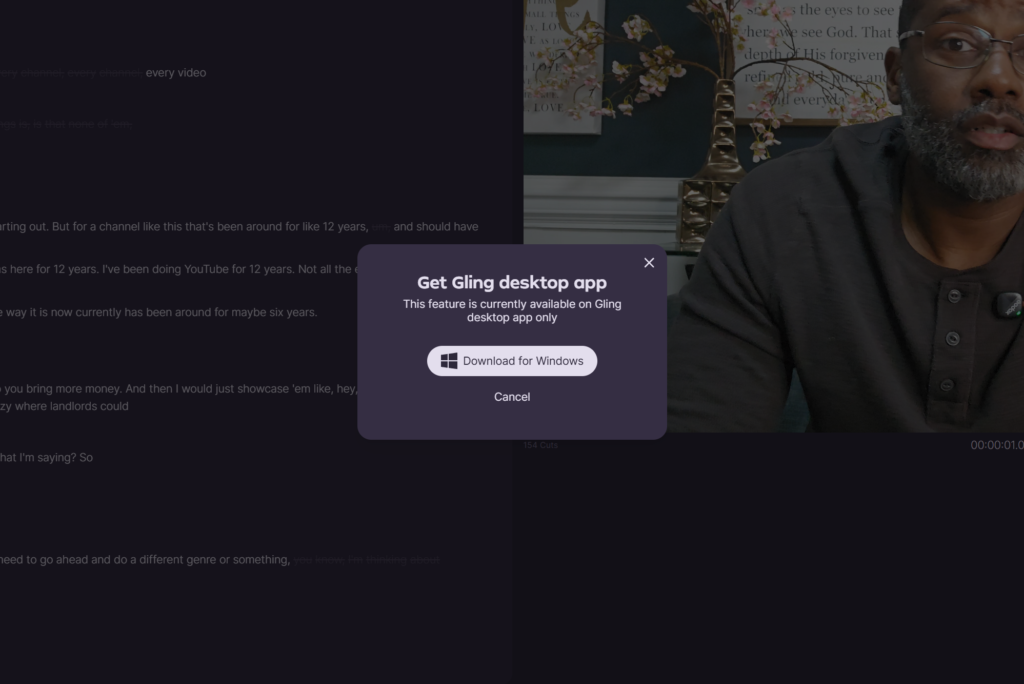
- Web Browser vs. Desktop App: Gling does not allow you to edit and export XMLs directly from your web browser without installing the app. downloading the Gling desktop app (available for macOS and Windows) is often the better route. In fact, I personally had to download the app for a few of my projects as well—processing heavy video locally avoids browser upload bottlenecks, timeout issues, and memory limits.
If you want a deeper look at Gling beyond XML exports, check out my full Gling AI Deep Dive Review here.
Critical Warning: Handling Variable Frame Rate (VFR) Footage
If you record video using smartphones (iPhones or Androids), webcams, or screen recorders like OBS and Zoom, your footage likely uses Variable Frame Rate (VFR). VFR dynamically adjusts frame rates to save storage space. However, VFR files are a major cause of audio drift when moving from gling to premiere pro via XML.
Why VFR Breaks XML Translations
XML translation relies on fixed timecode markers and a Constant Frame Rate (CFR). When Gling generates cut points based on a VFR file, the timing markers drift when translated into Premiere Pro. As a result, your audio slowly falls out of sync with your video as the timeline progresses.
How to Fix VFR Before Editing in Gling
To prevent audio sync issues, convert your VFR footage to Constant Frame Rate (CFR) before uploading it to Gling:
- Use Free Transcoding Tools: Download a free transcoder like HandBrake or Shutter Encoder.
- Set Frame Rate to Constant: Select a standard frame rate (such as 23.976, 29.97, or 60 fps) and explicitly set the output setting to Constant Frame Rate.
- Export as ProRes or H.264: Create a new CFR source video file.
- Upload CFR to Gling: Upload this newly transcoded file to Gling to ensure your XML export stays perfectly synchronized in Premiere Pro.
Step-by-Step: How to Export Gling to Premiere Pro as XML
Follow these steps to transfer your AI rough cut directly into Adobe Premiere Pro.
Step 1: Complete Your Rough Cut in Gling
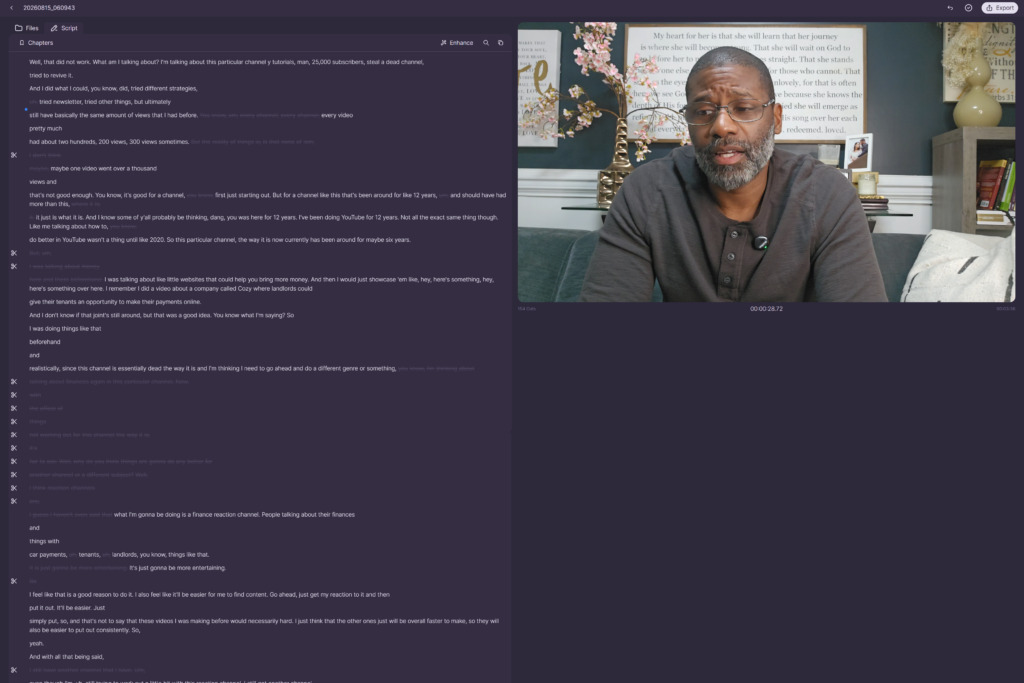
First, upload your raw voiceover or video footage into Gling so the AI can transcribe the speech and remove silences. Review your transcript in the Gling app and delete any remaining unwanted sections.
Step 2: Open the Export Options
Once your transcript and timeline look clean, navigate to the top-right corner of the Gling window and click the Export button.
Step 3: Select Premiere Pro (XML)
Select Premiere Pro (XML) from the export options. Choose a destination folder on your computer and save the .xml file.
Pro Tip: Save your XML file in the exact same project folder as your original video and audio files to simplify media management.
Step 4: Import the XML File into Adobe Premiere Pro
Launch Adobe Premiere Pro and open your active editing project.
- Go to File > Import (or press Ctrl + I on Windows / Cmd + I on Mac).
- Locate and select the .xml file exported from Gling.
- Click Import.
Premiere Pro will process the metadata and automatically generate a new sequence containing all your cut clips. For official technical details on how Adobe handles timeline imports, consult the Adobe Premiere Pro XML Import Guide.
Step 5: Relink Media (If Prompted)
Occasionally, Premiere Pro displays an “Offline Media” prompt upon importing XML files. If this happens, click Locate, navigate to your original source folder, and pick the matching clip. Premiere Pro will reconnect the rest of your sequence automatically.
Troubleshooting & Multi-Track Audio Routing
While exporting an XML from Gling is usually simple, complex multi-channel audio setups require specific track mapping adjustments in Premiere Pro.
Multi-Track Audio Routing and External Mic Sync
When recording podcasts or interviews with separate microphones, Gling preserves individual audio tracks. However, Premiere Pro may default to grouping multi-channel audio into stereo tracks upon XML import.
Follow these steps to separate and route multi-track audio correctly:
- Check Gling Audio Sync: Before exporting your XML, ensure external mic tracks are properly synced to the camera footage inside Gling.
- Import XML Sequence: Import your XML file into Premiere Pro.
- Locate Source Audio Files: If Premiere merges your mic channels onto a single audio track, select the imported audio clips in the Project Panel.
- Modify Audio Channels: Right-click the selected audio clips and navigate to Modify > Audio Channels.
- Set Channel Mapping: Change the Clip Channel Format from Stereo to Mono. Set the number of audio channels to match your original recording (e.g., 2 channels for Host and Guest mics).
- Assign Tracks: Map Source Channel 1 to Track 1 and Source Channel 2 to Track 2. Click OK.
- Replace Sequence Clips: Drag the updated multi-track audio onto your timeline sequence to gain independent volume and EQ control over each microphone.
Common XML Quick Fixes
- Audio Out of Sync: Verify that your original media is CFR and that Gling’s project frame rate matches your sequence settings.
- Missing Media Files: Ensure you haven’t renamed or relocated raw media files on your hard drive after running them through Gling.
- Truncated Words: If a word feels cut off, don’t re-export! Simply select the Selection Tool (V) in Premiere Pro and drag the edge of the clip to expand the audio handle.
Why You Should Export XML Instead of MP3 or MP4
When exporting from Gling, you must choose between pre-rendered media files (MP3/MP4) and timeline project files (XML). Choosing the right format makes a massive difference in your post-production workflow.
The Problem with Exporting MP3 or MP4
Exporting an MP3 or MP4 creates a flattened, compressed media file. Consequently, Gling bakes all your cuts directly into a single video or audio stream.
- Destructive Edits: You cannot adjust cut boundaries or recover trimmed words later.
- Loss of Quality: Re-encoding video or audio degrades quality before you begin color grading or audio mastering.
- Zero Clip Handles: If Gling clips a word half a second too early, you cannot pull the edge of the clip to restore audio.
- Track Flattening: Separate microphone or camera tracks are flattened into a single channel.
The Advantage of Exporting XML
An XML (Extensible Markup Language) file is not a video file. Instead, it acts as an Edit Decision List (EDL) that tells Adobe Premiere Pro precisely where to place cuts on your original raw media.
- Non-Destructive Editing: Every cut from Gling appears on your Premiere Pro timeline as an individual clip.
- Full Resolution Preservation: Premiere Pro links directly back to your original source files, preserving 100% of your color depth and audio fidelity.
- Adjustable Handles: You can easily drag the edges of any clip directly on your Premiere timeline to fix tight cuts or restore natural spacing.
- Instant Exports: Because XML files contain no media streams, they export in seconds.
Why XML Changed My Own Workflow
For my editing workflow, I rely heavily on Premiere Pro to assemble my final videos. My process starts by using Gling specifically to edit my vocals and voiceover tracks first. Once I have a polished voiceover cut, I bring it into Premiere Pro to build out the visual side—adding visual effects, B-roll footage, on-screen text, and sound design.
The Old Way: Using MP3s
When I used to export rendered MP3 files from Gling, I would run into the same problem. Even after carefully reviewing my audio inside Gling, I would inevitably get into Premiere Pro and notice a clip I missed or a word that was cut off just a fraction of a second too fast.
Because an MP3 is a flattened file, my only option was to:
- Stop working in Premiere Pro.
- Re-open Gling and adjust the cut.
- Re-export the new MP3 file.
- Re-import the audio into Premiere Pro and realign my B-roll.
The New Way: On-the-Fly XML Editing
Switching to XML timeline exports completely eliminated that back-and-forth friction. Now, when I import the XML into Premiere Pro, every vocal cut exists as an independent, moveable clip. If a word gets clipped slightly too early, I don’t have to jump back into Gling at all—I simply trim or extend the clip edge right on my Premiere timeline on the fly.
Exporting timeline XML files to Premiere Pro is easily the best upgrade to my post-production process. Honestly, I wish I tried this out sooner but to be honest, I was using the free version for a while so it wasn’t even an option. But now this will be the only way I export to Premiere Pro.
Comparison Breakdown: XML vs. MP3/MP4 Exports
| Feature | XML Export | MP3 / MP4 Export |
| Editing Style | Non-Destructive | Destructive (Baked-In) |
| Media Quality | Original Raw Camera/Audio Quality | Re-encoded / Compressed |
| Cut Adjustability | Full clip handles & on-the-fly fixes | Fixed cuts; requires re-exporting |
| Track Separation | Preserves multi-track audio/video | Merges all tracks into one |
| Export File Size | A few kilobytes | Several megabytes or gigabytes |
Optimizing Your AI Video Editing Workflow
Using AI to automate rough cuts frees up your time for creative tasks like storytelling, B-roll assembly, graphics, and color grading.
By integrating Gling early in your post-production workflow to clean up voiceovers and dialogue, you eliminate hours of repetitive manual trimming. Once your XML sequence is inside Premiere Pro, you can seamlessly layer visual effects and audio processing on top of a solid vocal foundation.
To build an efficient post-production engine, read our complete YouTube video editing workflow guide on YT Torials. Additionally, explore our proven strategies to speed up your video editing workflow to save even more time on every video release.
Summary & Next Steps
Having used Gling for a year now, I’ve found that exporting from Gling to Premiere Pro using XML format preserves your raw video quality while giving you complete non-destructive control over every cut. Avoid MP3 and MP4 exports whenever you plan to refine your edit in a professional video editor. Moving your vocal cuts via XML allows you to fix tight edits on the fly directly in Premiere Pro without ever having to re-export audio.
If you found this guide helpful and want to master modern AI editing workflows, subscribe to the YT Torials newsletter today! You will receive expert editing tutorials, algorithm breakdown strategies, and channel growth tips delivered straight to your inbox. In addition, make sure to visit and subscribe to our YT Torials YouTube channel for step-by-step video breakdowns!
Related Posts
Gling vs. Descript: Which AI Video Editor Fits Your Workflow?
How to Export Gling to DaVinci Resolve
Managing Multi-Cam Interviews with Gling Multi-Cam Sync
How to Automate Your Rough Cuts (The 5-Step Gling Workflow)

No responses yet