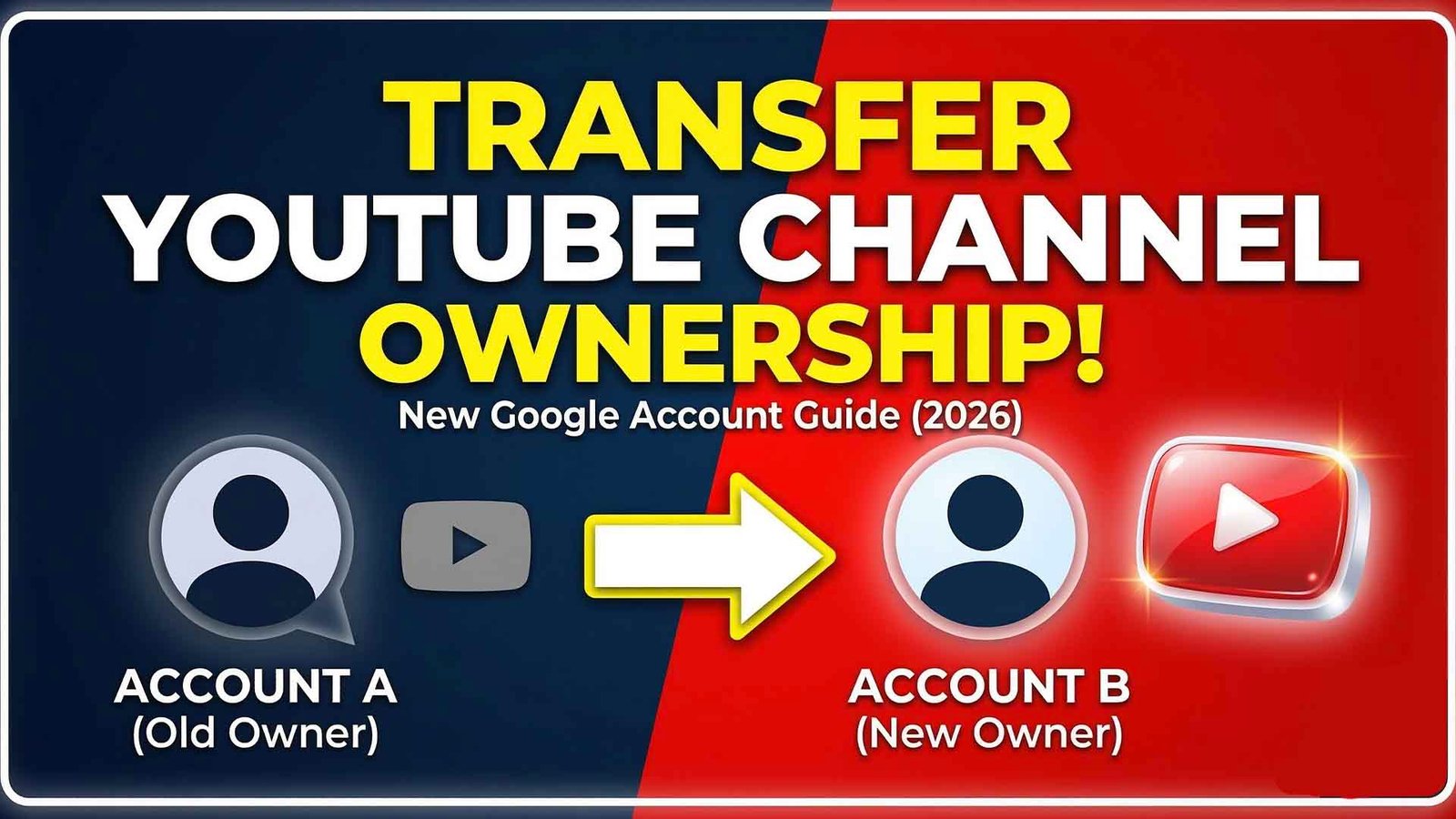
Moving your YouTube channel to a new Google account might seem scary. You have worked hard on your videos and grown your audience. The last thing you want is to lose your progress. Whether you are selling your business, rebranding, or just moving to a professional email, this guide will help you. We will walk through every step to ensure your subscribers, videos, and comments stay safe during the move.
Table of Contents
- Why Transfer Your YouTube Channel?
- Personal Account vs. Brand Account: What You Need to Know
- Step 1: Check Your Current Account Type
- Step 2: How to Move a Personal Channel to a Brand Account
- Step 3: Inviting the New Google Account
- Step 4: The 7-Day Waiting Period
- Step 5: Making the New Account the Primary Owner
- Common Pitfalls and How to Avoid Them
- What Happens to YouTube Premium and Memberships?
- Summary and Next Steps
Why Transfer Your YouTube Channel?
There are many reasons why a creator might need to shift their digital home. First, many people start their channel using a personal Gmail address. As the channel grows, it becomes a business. Consequently, it makes sense to move the channel to a dedicated business email.
Secondly, you might be selling your channel. In this case, you need a safe way to hand over the “keys” without giving away your private Google data. Finally, moving to a Brand Account allows you to add managers. If you want to learn more about team management, check out our easy guide to adding managers and editors.
Personal Account vs. Brand Account: What You Need to Know
Before you start, you must understand the difference between account types. A Personal Account is tied directly to your Google Identity. Your YouTube name is your Google name. On the other hand, a Brand Account is a separate entity.
Crucially, you cannot transfer a Personal Account directly to another email. You must first link it to a Brand Account. This acts as a middleman that allows multiple people to own or manage the channel. Furthermore, Brand Accounts let you have a different name for your channel than your email.
If you are just looking to freshen up your look before the move, watch our video on how to change your YouTube name and handle:
Step 1: Check Your Current Account Type
To begin, you need to see what you are working with.
- Sign in to YouTube on a computer.
- Click your profile picture in the top right.
- Go to Settings.
- Look for “Channel Managers” or “Advanced Settings.”
If you see an option to “Add or remove managers,” you already have a Brand Account. However, if you only see “Advanced Settings” with an option to “Move channel to a Brand Account,” you are currently on a Personal Account. For official details, you can visit the Google Support page on channel transfers.
Step 2: How to Move a Personal Channel to a Brand Account
If you are on a Personal Account, this is the most important part. Please be careful, as this step can delete data if done wrong.
- Create a new Brand Account: Go to your YouTube Channel List and click “Create a new channel.” Give it a placeholder name.
- Go to Advanced Settings: On your original channel, go to Settings > Advanced Settings.
- Select “Move channel to a Brand Account”: You will be asked to verify your identity.
- Choose the destination: Select the placeholder Brand Account you just created.
- Confirm the move: YouTube will warn you that certain things like comments and messages won’t move. Your videos and subscribers will stay safe.
Step 3: Inviting the New Google Account
Now that your channel is a Brand Account, you can invite your new email address.
- In YouTube Settings, click Add or remove managers.
- Click the blue Manage Permissions button. (You may need to sign in again).
- Click the “Invite new users” icon (the plus sign) in the top right.
- Enter the email address of the Google account you want to move the channel to.
- Choose a role: Select “Owner.” Do not select “Manager” if your goal is full ownership.
- Click Invite.
The new email will receive an invitation. You must log into that new account and click “Accept” in the email.
Step 4: The 7-Day Waiting Period
This is where many creators get confused. Even though you accepted the invite, you are not the “Primary Owner” yet. Google has a mandatory security rule. You must be an “Owner” for exactly 7 days before you can become the “Primary Owner.”
During this week, do not change any major settings. Just wait. This rule exists to prevent hackers from stealing channels and immediately locking out the original creator.
Step 5: Making the New Account the Primary Owner
After 7 days have passed, it is time to finish the job.
- Log back into the original Google account.
- Go back to Manage Permissions.
- Find the new email address in the list.
- Click the drop-down menu next to their name and change “Owner” to Primary Owner.
- Click Transfer.
Once this is done, the new account has full control. You can then remove the old email address from the list entirely. Now, your channel is officially moved!
Common Pitfalls and How to Avoid Them
Even with a guide, mistakes happen. Therefore, keep these tips in mind:
- Watch History: Your watch history and search history stay with the original Google account. They do not move to the new one.
- Custom URLs: Most of the time, your custom URL will move with you. However, check your settings after the move to be sure.
- Brand Account Names: Ensure you don’t delete the wrong channel during Step 2. Always double-check which channel is being “replaced.”
For more technical troubleshooting, the community at Stack Exchange often discusses these complex migrations.
What Happens to YouTube Premium and Memberships?
This is a common question. Unfortunately, YouTube Premium and Channel Memberships are tied to the Google Account, not the YouTube Channel.
If you move your channel to a new email, your Premium subscription stays on the old email. You will need to cancel it on the old account and resubscribe on the new one. Similarly, if you are a member of other channels, those memberships will not transfer.
Summary and Next Steps
Transferring a YouTube channel is a multi-step process that requires patience. By converting to a Brand Account, inviting your new email as an owner, and waiting the required 7 days, you can safely move your digital asset. Remember to double-check every step to protect your hard-earned content.
If you found this guide helpful, make sure to stay updated with the latest YouTube creator tips! Subscribe to the YT Torials newsletter at https://yttorials.blog/newsletter/ for weekly growth hacks. Also, don’t forget to visit and subscribe to the YT Torials YouTube page for video versions of these tutorials.
Follow YT Torials:
Sign up to the YT Torials Newsletter


No responses yet