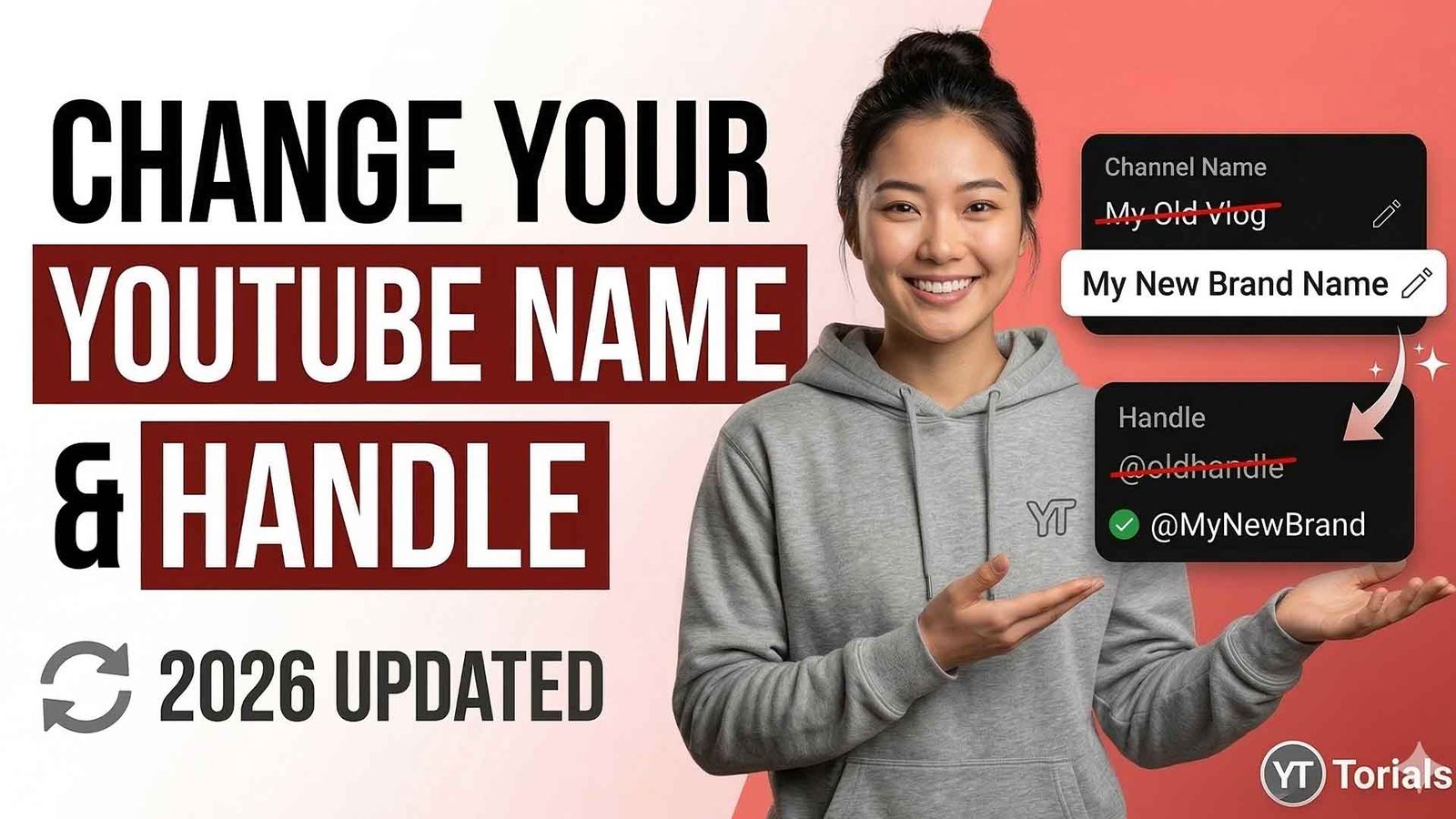
Whether you are rebranding or just want a fresh start, knowing how to change your YouTube name and handle is a basic skill for every creator. In 2026, YouTube has made this process easier, but there are a few “gotchas”—like losing your verification badge—that you need to know before you click save.
In this guide, we will walk through the exact steps for both desktop and mobile users. We will also explain the difference between your name and your handle so your fans can always find you.
Table of Contents
- Channel Name vs. Handle: What is the Difference?
- How to Change Your YouTube Name on Desktop
- How to Change Your YouTube Handle on Desktop
- Changing Your YouTube Name and Handle on Mobile
- Important Rules and Limitations
- Summary and Next Steps
Channel Name vs. Handle: What is the Difference?
Before you start clicking buttons, you must understand what you are changing. Your Channel Name is your display name. It appears on your channel page and under your videos. Multiple people can have the same channel name, which is why it isn’t unique.
On the other hand, your YouTube Handle is your unique identifier. It starts with the “@” symbol. This handle is used for tagging you in comments, mentions, and Shorts. Because handles are one-of-a-kind, they also make up your unique URL (e.g., youtube.com/@YourHandle).
If you’re looking to grow your channel, branding is key. You might also want to check out how to make awesome YouTube playlists to keep your new brand organized.
How to Change Your YouTube Name on Desktop
Changing your name on a computer is the most common way for creators to manage their accounts. Follow these steps to update your display name:
- Sign in to YouTube Studio.
- On the left-hand sidebar, scroll down and click on Customization.
- At the top of the page, click the Basic Info tab.
- Find the Name section and click the pencil icon to edit.
- Type in your new name.
- Click Publish in the top-right corner to save your changes.
Note: If you are using a personal Google account, changing your YouTube name might also change your name on other Google services like Gmail. To avoid this, consider moving to a Brand Account.
How to Change Your YouTube Handle on Desktop
Because your handle is your unique “fingerprint,” you should choose it carefully. If you change it, your old handle becomes available for anyone else to claim after 14 days.
- Go to YouTube Studio and click Customization.
- Select the Basic Info tab.
- Under the Handle section, delete your old handle.
- Enter your new handle. If it’s available, you’ll see a green checkmark.
- Click Publish.
Changing your handle will update your channel URL automatically. If you’re tracking your earnings, remember that your niche affects your pay. Learn more about YouTube ad revenue by category to see how your new brand fits in.
Changing Your YouTube Name and Handle on Mobile
Most creators do everything from their phones today. Thankfully, the YouTube app makes these changes very simple.
Steps for iPhone and Android:
- Open the YouTube App.
- Tap your Profile Picture (or the “You” tab) in the bottom right.
- Tap on View Channel.
- Click the Pencil Icon (Edit) near your channel analytics.
- Tap the Pencil Icon next to “Name” or “Handle” to make your changes.
- Tap Save when you are finished.
Important Rules and Limitations
While changing your name is easy, there are a few rules you must follow. First, you can only change your name twice every 14 days. If you make a mistake, you might have to wait two weeks to fix it!
The Verification Warning
This is the most important part for established creators. If your channel has a verification badge (the small checkmark), changing your name will remove it. You will have to reapply for verification once the name change is complete.
Other Considerations:
- Search Delay: It can take up to 30 days for your new name to show up correctly in search results.
- Redirects: When you change your handle, YouTube will redirect your old handle URL to your new one for 14 days. After that, the old link may stop working if someone else claims the handle.
- Community Guidelines: Your new name and handle must follow YouTube’s rules. Avoid offensive language or impersonating other famous creators.
Summary
Updating your YouTube identity is a great way to stay relevant. Whether you are using a desktop or the mobile app, the process only takes a few minutes. Just remember that your handle is unique, while your name is your public “face.” Always double-check your spelling because you can only make two changes every two weeks!
Ready to take your channel to the next level? Subscribe to the YT Torials Newsletter for weekly tips on growing your audience, and follow us on the YT Torials YouTube page (@yttorials) for deep-dive video guides!
Follow YT Torials:
Sign up to the YT Torials Newsletter


No responses yet