
YouTube has recently rolled out some massive technical updates that change how your viewers see and hear your content. In early 2026, the platform introduced AI-powered tools like Super Resolution and Stable Volume. While these features aim to make videos look and sound “better” automatically, the creator community is divided.
If you have noticed your colors looking “plastic” or your audio losing its cinematic punch, you aren’t alone. Therefore, understanding how to manage these features is essential for maintaining your creative vision. In this guide, we will break down what these upgrades do, why creators like Rick Beato are speaking out against them, and exactly how to turn them off.
Table of Contents
- AI Upscaling: What is Super Resolution?
- The “AI Slop” Controversy: Why Creators are Angry
- Managing Stable Volume for Audio
- Step-by-Step: How to Find and Disable Enhancements
- The Impact on Your Channel Metrics
AI Upscaling: What is Super Resolution?
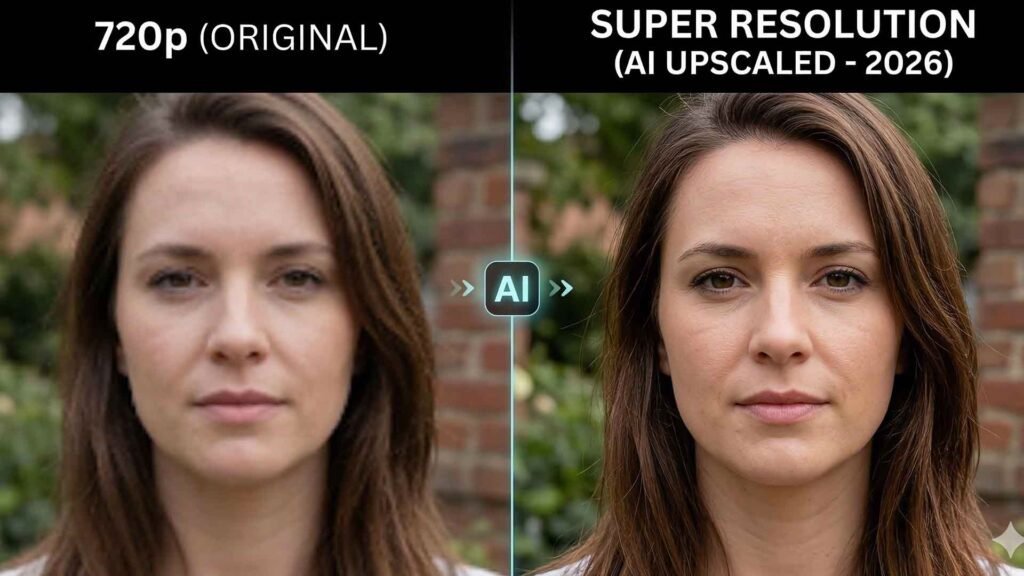
YouTube’s new Super Resolution is a sophisticated machine-learning tool designed to sharpen lower-quality videos. In short, it takes footage filmed in 720p and upscales it to a “simulated” 1080p or 4K. This is especially helpful for the 35% of viewers now watching YouTube on large smart TVs where low-resolution video looks blurry.
However, this process isn’t just a simple stretch of the image. The AI actually reconstructs pixels to add detail that wasn’t there in the original file. Specifically, it looks for patterns in textures—like grass, hair, or fabric—and sharpens them using a database of high-resolution images. Consequently, this can make your channel look high-end even on a budget. If you want to ensure your channel keeps a professional feel regardless of the resolution, check out our guide on how to customize your YouTube channel to look professional.
Additionally, Super Resolution is particularly effective for legacy content. If you have older videos from 2015 that look dated, YouTube’s AI can breathe new life into them. Nevertheless, the results are not always perfect, leading us to the growing pushback from the creative community.
The “AI Slop” Controversy: Why Creators are Angry
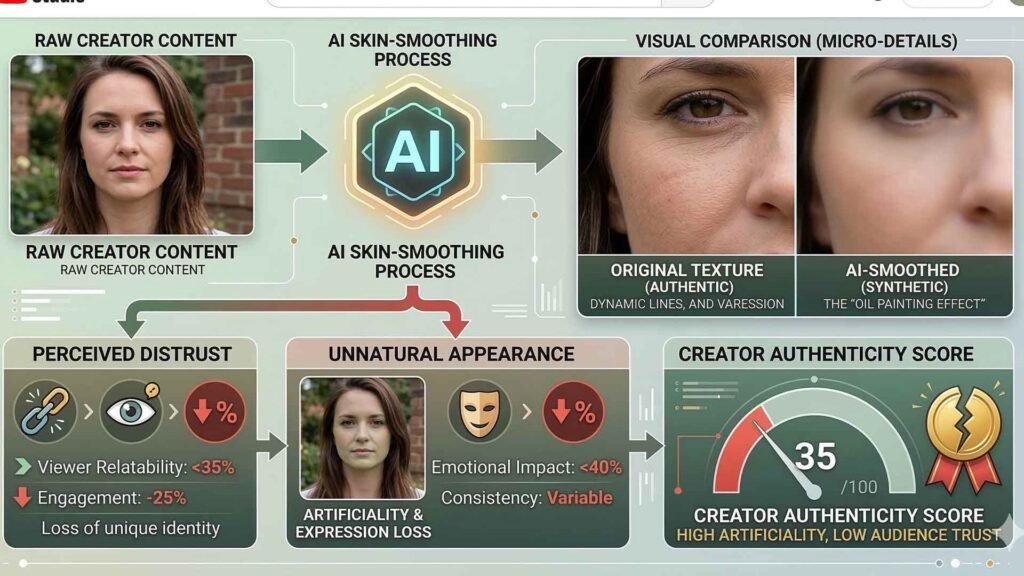
While the tech sounds helpful, many professional creators are pushing back. According to reports from BBC News and The Atlantic, YouTube began testing these edits “secretly” on Shorts in late 2025. First of all, the AI sometimes adds “artifacts”—weird visual glitches that make skin look like an oil painting.
Furthermore, many filmmakers spend hours color-grading their footage. When YouTube’s AI automatically “enhances” the brightness or sharpness, it can erase that hard work. For this reason, high-profile creators have complained that YouTube is modifying their art without consent. Critics have dubbed this “AI slop” because it prioritizes algorithm-pleasing clarity over human artistic intent.
Audio “Stable Volume”: Balanced Sound vs. Creative Intent
On the audio side, YouTube has introduced Stable Volume. Basically, this feature acts as a “normalizer.” It attempts to keep the volume level consistent throughout a video. Specifically, it targets a loudness of approximately -14 LUFS, making quiet whispers louder and loud explosions softer.
The Benefits and Drawbacks
- The Good: People watching in noisy environments (like a bus) can hear everything clearly. It also protects viewers from “volume jumps” when switching between different creators.
- The Bad: It ruins niches like ASMR or Cinematic Vlogs that rely on the contrast between silence and noise. Therefore, Stable Volume can make a professional mix feel “flat.”
[Image: Comparison of Audio Waveforms before and after Stable Volume normalization]
Step-by-Step: How to Find and Disable Enhancements
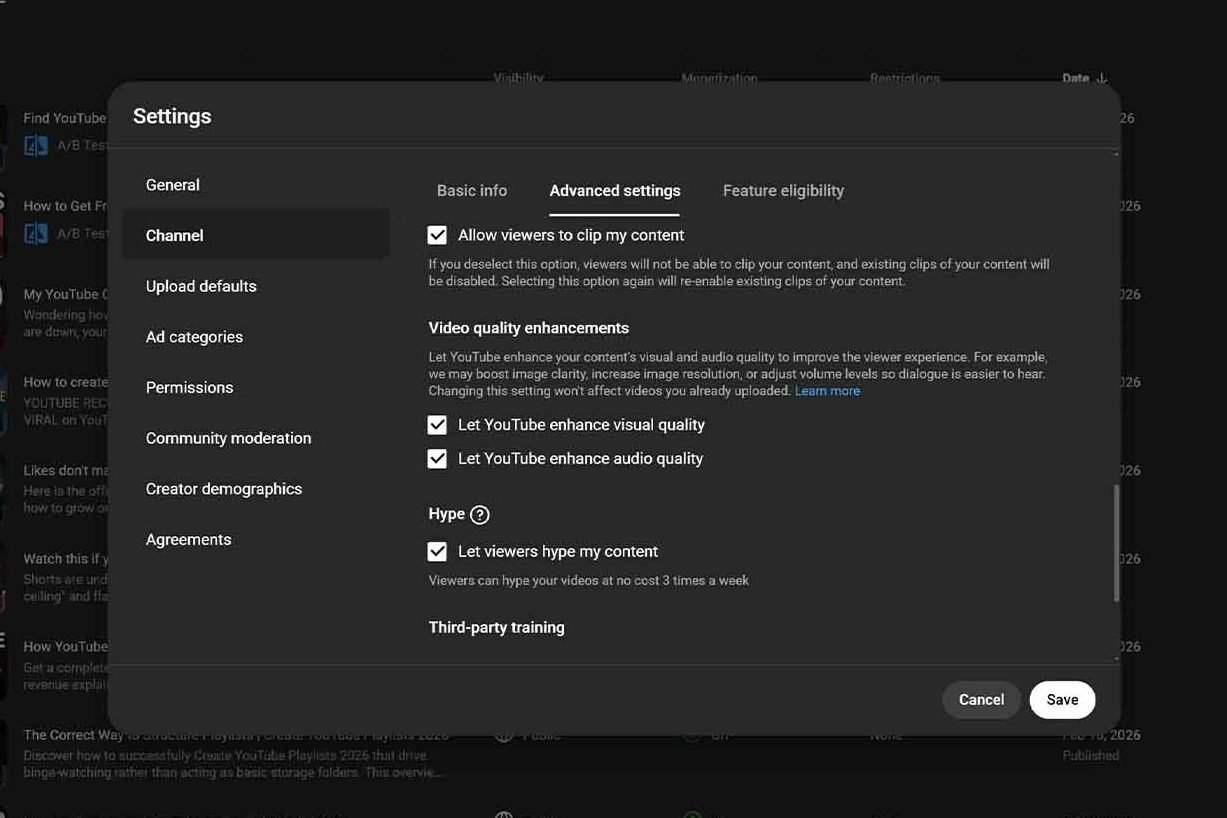
YouTube knows that one size does not fit all. Fortunately, they have finally added a “Global Opt-Out” in the desktop version of YouTube Studio. However, it is enabled by default for all new channels.
For Creators (Channel-Wide)
To prevent YouTube from altering your future uploads:
- Log in to your YouTube Studio.
- Click on the Settings gear icon (bottom left).
- Navigate to Channel > Advanced Settings.
- Scroll down to the “Video & Audio Quality Enhancements” section.
- Uncheck the boxes for “AI Visual Enhancement” and “Stable Volume Normalization.”
- Hit Save.
For Viewers (Individual Video)
If you are watching a video and the audio sounds “compressed,” you can toggle it off locally:
- Tap the gear icon on the video player.
- Select “Additional Settings.”
- Toggle “Stable Volume” to Off.
The Impact on Your Channel Metrics
Does turning these features off hurt your performance? Not necessarily. In fact, if your audience prefers a “raw” or “cinematic” feel, they will appreciate the original quality more. High-quality production is only one piece of the puzzle. Additionally, you need to track how quality affects your “Average View Duration.”
To see if these changes are affecting your performance, you must master your analytics. You can learn more about this by reading our deep dive into understanding CTR vs. AVD. Ultimately, the goal is to provide the best experience for your specific audience.
Summary
YouTube’s 2026 quality enhancements are a double-edged sword. On one hand, AI upscaling can make mobile-shot videos look more professional. On the other hand, they can strip away the unique “soul” of your content. Therefore, it is up to you to decide if these tools help or hurt your brand. In conclusion, take five minutes today to check your YouTube Studio settings and ensure your videos are appearing exactly how you intended.
Don’t let the algorithm change your vision! For more expert tips on mastering the platform, make sure to subscribe to the YT Torials newsletter and follow us on the YT Torials YouTube page (@yttorials) for the latest tutorials.
Follow YT Torials:
Sign up to the YT Torials Newsletter


No responses yet