
Clutter in your YouTube library can make finding your favorite videos feel like a chore. Over the years, your account likely accumulated dozens of outdated music mixes, expired tutorials, or “Watch Later” lists that you no longer need. Since YouTube’s massive interface overhaul in early 2026, many of the traditional buttons have moved. This guide provides the most current, step-by-step instructions to help you purge your library and keep your digital space organized.
Table of Contents
- How to Delete a YouTube Playlist on PC (Web Browser)
- Deleting Playlists on the YouTube Mobile App (iOS & Android)
- Using YouTube Studio for Professional Management
- Removing Saved Playlists from Other Creators
- The Bulk Delete Workaround for Power Users
- Alternative: Changing Playlist Privacy Settings
- Troubleshooting: Why Can’t I Delete My Playlist?
How to Delete a YouTube Playlist on PC (Web Browser)
Using a desktop browser remains the most efficient way to manage large libraries. Because the 2026 desktop UI focuses on a minimalist “pill-shaped” button design, some icons are smaller than they used to be. Specifically, you will find most management tools tucked away in the “You” tab sidebar.
- Navigate to YouTube: Open your preferred browser and sign in to your account.
- Locate the “You” Tab: On the left-hand navigation menu, click the You icon. This has replaced the older “Library” menu.
- Enter the Playlists Manager: Scroll down to the Playlists section and click on View All.
- Select Your Target: Click on the specific playlist you wish to remove. Therefore, you will be taken to the dedicated playlist landing page.
- Trigger Deletion: On the left sidebar of the playlist page, locate the three horizontal dots (More) next to the “Share” icon.
- Confirm: Select Delete Playlist. A confirmation pop-up will appear warning you that this action is permanent. Consequently, once you click Delete, the list is gone forever.
Pro Tip: If the left sidebar is hidden, click the “three-line” hamburger menu in the top left corner of the screen to expand your navigation options.
Deleting Playlists on the YouTube Mobile App (iOS & Android)
The mobile app has been updated to prioritize “one-thumb navigation.” Furthermore, the steps for Android and iPhone are now virtually identical thanks to the unified 2026 app framework.
- Step 1: Open the YouTube app.
- Step 2: Tap your Profile Picture in the bottom right corner (labeled as the “You” tab).
- Step 3: Under the “Playlists” header, swipe horizontally or tap View All to see your full collection.
- Step 4: Find the playlist you want to scrap. Tap the three vertical dots appearing next to the playlist name.
- Step 5: Tap Delete Playlist.
- Step 6: A final prompt will ask if you are sure. Select Delete to finalize the process.
Additionally, if you are currently watching a video inside a playlist, you can tap the playlist title at the bottom of the player to open the management menu directly. This is particularly helpful for quick cleanups while you are browsing.
Using YouTube Studio for Professional Management
For creators, managing public-facing playlists is better handled through YouTube Studio. This dashboard provides a birds-eye view of your content’s performance before you decide to delete it.
- Open YouTube Studio on your desktop.
- Click on the Content tab in the left-hand menu.
- Switch to the Playlists sub-tab at the top of the page.
- Find the playlist and hover over it to reveal the Options (three dots).
- Select Delete Playlist.
As a result, the playlist will be removed from your public channel page immediately. Meanwhile, the individual videos will stay in your “Content” library as independent uploads.
Removing Saved Playlists from Other Creators
Sometimes, the playlist you see isn’t one you made yourself. Instead, it is a list you “saved” from another channel. In this scenario, you cannot “delete” the playlist because you don’t own it; however, you can remove it from your library view.
- Open the “You” tab and find the saved playlist.
- Click or tap into the playlist to view the videos.
- Locate the Save button (which should look highlighted or checked).
- Click it again to “Unsave” the list.
Consequently, the playlist will disappear from your account sidebar. Because you didn’t create the list, it will still exist on the original creator’s channel for other people to enjoy.
The Bulk Delete Workaround for Power Users
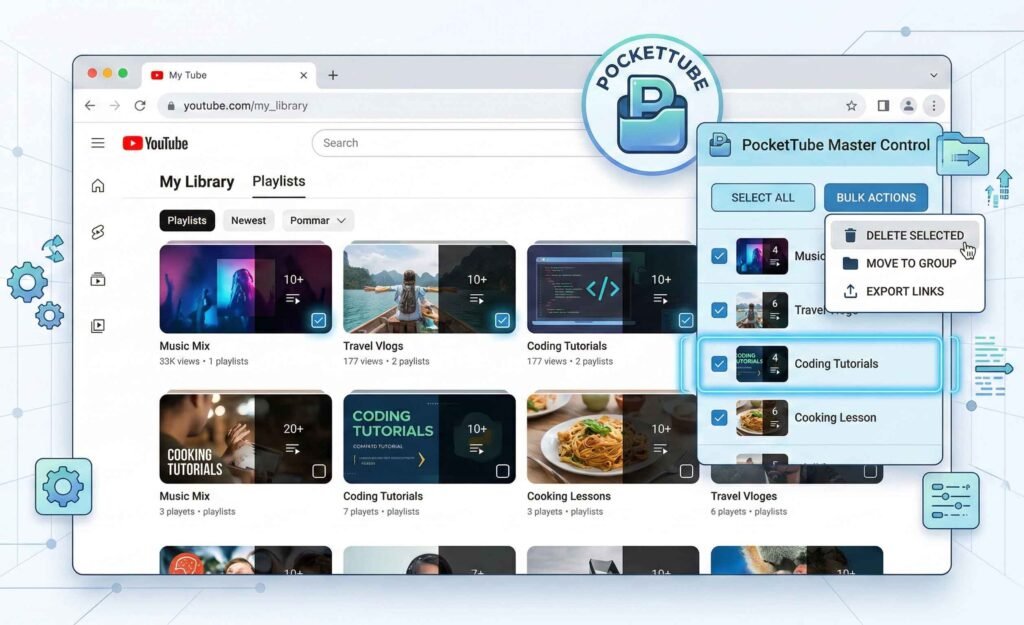
A major frustration for many users is that YouTube does not offer a native “Select All” button for playlists. If you have 100 playlists to delete, doing it manually is exhausting. However, power users can use the PocketTube browser extension or a custom n8n automation script.
- PocketTube: This extension adds a checkbox next to every playlist in your library. Specifically, you can check multiple lists and hit a single “Delete” button.
- Automation: For those with coding knowledge, using an API-based tool like n8n can fetch all playlist IDs and delete them in a loop.
Finally, always be careful when using third-party tools. Ensure you have backed up any important links before running a bulk deletion script, as these actions cannot be undone.
Alternative: Changing Playlist Privacy Settings
If you aren’t 100% sure about deleting a list, consider changing its privacy instead. This is often a better choice if you want to keep the list for personal reference without having it clutter your public profile.
- Public: Anyone can search for and view the list.
- Unlisted: Only people with the direct link can see it.
- Private: Only you can see the list.
To change this, go to your playlist page and look for the Privacy dropdown under the playlist title. Select Private, and the list will effectively “disappear” from the world while staying safely in your account.
Troubleshooting: Why Can’t I Delete My Playlist?
Occasionally, users encounter bugs where the “Delete” option is missing. This often happens if the YouTube app is outdated. Specifically, ensure you are running the latest 2026 version of the app from the App Store or Google Play.
Another common issue involves “System Playlists” like Liked Videos or Watch Later. You cannot delete these lists entirely because they are core features of the platform. However, you can clear the videos inside them to keep them empty.
Summary
Maintaining a clean YouTube library is essential for a great viewing experience. Whether you are using the new “You” tab on mobile or the Studio dashboard on PC, deleting unwanted playlists only takes a few clicks. Remember that deleting a playlist is permanent, so consider the “Private” option if you might need those videos later. By following these steps, you will ensure your YouTube account stays organized and professional.
Ready to master your YouTube channel? Subscribe to the YT Torials newsletter for the latest news, and visit our YT Torials YouTube page (@yttorials) for video walkthroughs of every guide I write!
Follow YT Torials:
Sign up to the YT Torials Newsletter


No responses yet