
Your YouTube channel is more than just a place to upload videos; it’s your brand’s online home. Just like a physical storefront, a well-customized channel can attract visitors, keep them engaged, and ultimately help you grow your audience. This guide will walk you through the key steps to personalize your YouTube channel and make it uniquely yours.
Why should you customize a YouTube channel?
Customizing your YouTube channel is the fastest way to turn it from a simple video collection into a professional brand. It’s more than just a good look—it’s how you make people want to watch your content and become a subscriber.
In an ecosystem where millions of hours of video are uploaded daily, a default channel layout signals a hobbyist, whereas a customized layout signals an authority.
Here’s why fully customizing your channel is a critical investment:
1. Make a Great First Impression
When someone new visits your page, a well-designed channel shows that you’re a serious creator. You have less than five seconds to convince a new visitor to stay.
A clean, organized, and branded page makes people more likely to explore your videos and subscribe because it builds immediate trust.
A cluttered or generic page with a default icon, on the other hand, can cause them to leave without watching anything, as it implies the channel might be inactive or low-quality.
2. Build a Professional Brand
Customization helps you create a professional visual identity that people will recognize across the platform. Consistency creates familiarity, and familiarity breeds loyalty.
- Profile Picture: The icon that appears next to your videos and comments. This is your “face” on the platform; it needs to be legible even on small mobile screens to ensure your comments and community posts stand out.
- Banner Image: The large header at the top of your page that sets the tone for your channel. This is your digital billboard—it should instantly communicate your niche, your upload schedule, and your unique value proposition.
- Video Watermark: A small, clickable logo that appears in the corner of all your videos, encouraging viewers to subscribe without interrupting the viewing experience.
3. Help Viewers Find What They Want (and Binge Watch)
A customized layout makes it easy for viewers to find videos, which keeps them on your channel longer. By guiding the viewer’s journey, you reduce friction and increase “session time”—a metric the YouTube algorithm loves. You can organize your page with special sections for:
- A Channel Trailer: A short video for new visitors that introduces your channel. This is your elevator pitch to convert casual browsers into subscribers immediately.
- Featured Playlists: Curated lists that group your videos by topic. This helps viewers navigate your backlog without feeling overwhelmed, encouraging them to binge-watch a series rather than watching just one clip.
- Popular Uploads: A highlight of your best videos to show new viewers what your audience loves, serving as social proof of your content’s quality.
4. Get Found and Keep Viewers
A clear channel description and relevant links help people find you through YouTube’s search. Your “About” section isn’t just a biography; it’s a prime spot for SEO keywords that help the algorithm understand your niche.
Once they land on your page, a great layout and a compelling trailer are powerful tools that keep their attention and turn them into loyal subscribers. Furthermore, linking your social media and external websites turns your YouTube traffic into a comprehensive ecosystem, driving growth beyond just video views.
They land on your page, a great layout and a compelling trailer are powerful tools that keep their attention and turn them into loyal subscribers.
Getting Started: Accessing Customization Options
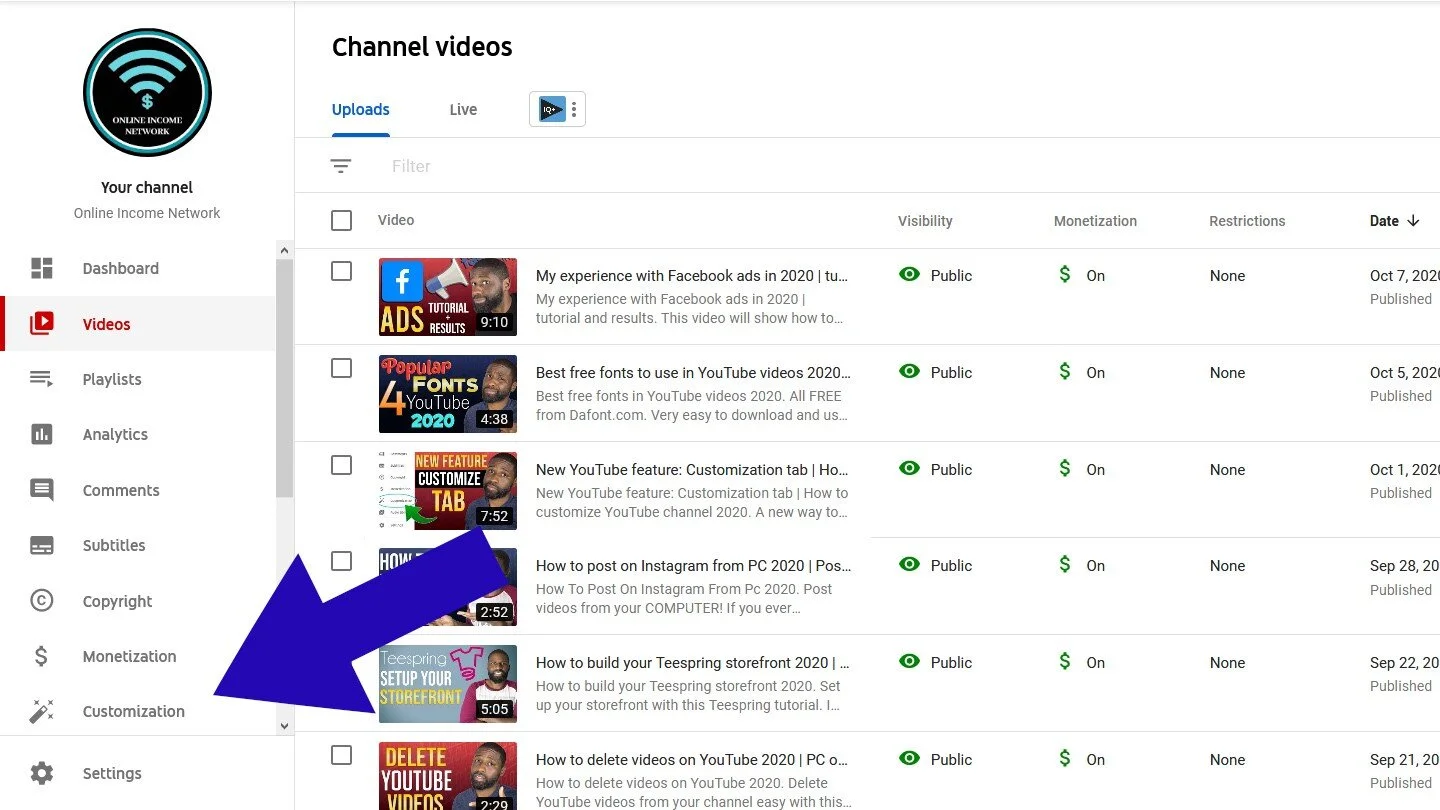
To begin customizing your channel, you’ll need to access YouTube Studio:
- Sign in to your YouTube account.
- Click on your profile picture in the top right corner.
- Select YouTube Studio.
- In the left-hand sidebar, click on Customization.
This will open up three main sections: Layout, Branding, and Basic info. Let’s explore each one.
This is what each tab consists of to customize:
- Layout: Channel trailer, featured video, and channel sections.
- Branding: Profile picture, banner image, and video watermark.
- Basic info: Channel name, description, and site links.
Something else to note, featured channels have it’s own tab on your channel. The change was made on Oct 15th, 2020
With this change, featured channels will be visible on mobile now as before it could only be seen on desktop. Unfortunately everything hasn’t made it into this new change. The option to have a section displayed vertically is now gone.
This change can be quite significant to the look of a YouTube channel. Hopefully it won’t be a lasting change.
1. Layout: Crafting Your Channel Homepage
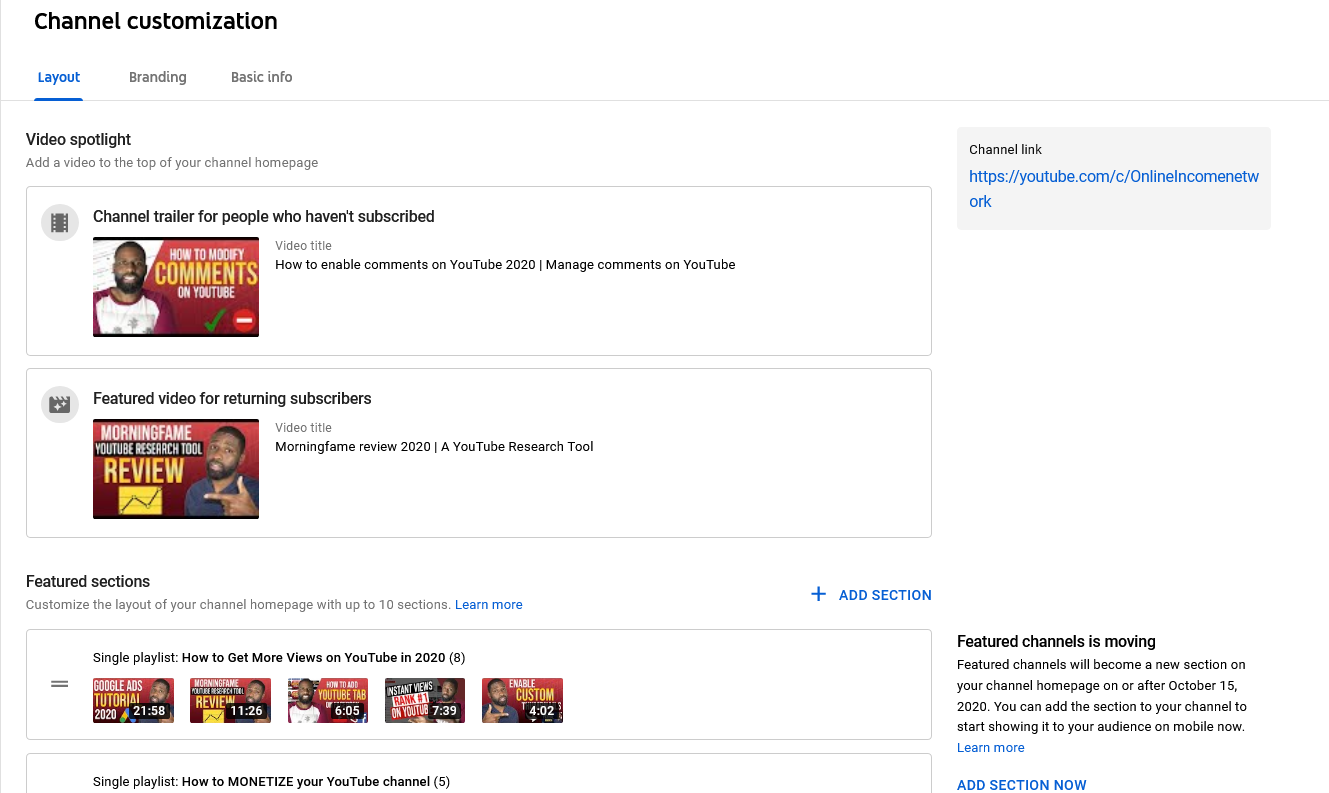
The Layout tab allows you to organize the content displayed on your channel’s homepage. This is crucial for new visitors as it helps them understand what your channel is all about.
- Channel Trailer: For people who haven’t subscribed, you can create a short video (usually under a minute) that introduces your channel, highlights your content, and encourages them to subscribe.
- Featured Video for Returning Subscribers: This allows you to feature a different video for your existing subscribers, perhaps a recent upload or a popular piece of content they might have missed.
- Featured Sections: This is where you can really organize your content. You can add multiple sections, each displaying a different playlist, single video, popular uploads, live streams, or even other channels. Consider using sections to:
- Group videos by topic or theme.
- Showcase your most popular content.
- Highlight recent uploads.
- Promote specific series or projects.
Tips for Layout:
- Keep your channel trailer concise and engaging.
- Regularly update your featured sections to showcase your latest and best content.
- Think about the logical flow for a new viewer – what do you want them to see first?
- Need technical help? See the official step-by-step instructions on how to customize your channel layout here.
2. Branding: Establishing Your Visual Identity
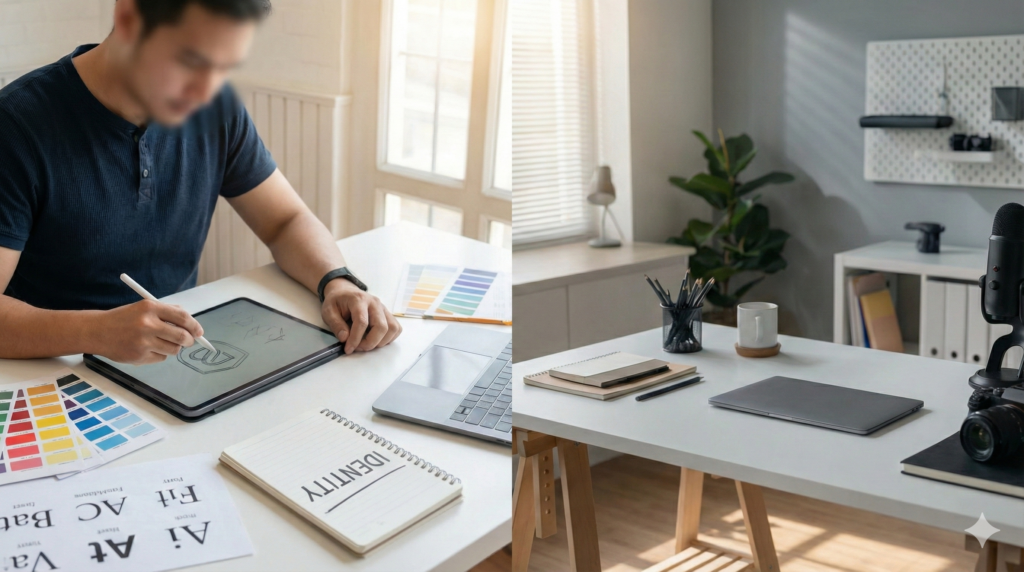
The Branding tab is where you upload and manage the visual elements that represent your channel.
- Profile Picture: This image will appear across YouTube, next to your videos and comments. Use a clear, recognizable image that represents your brand. Recommended size: 98 x 98 pixels or larger.
- Banner Image: This is the large banner that appears at the top of your channel page. It’s a great opportunity to showcase your brand visually and include a tagline or social media handles. Recommended size: 2048 x 1152 pixels (Tip: Visuals can get cut off on mobile. Use this Social Media Image Size Guide to check your safe zones.)
- Video Watermark: This small image appears in the bottom right corner of your videos and allows viewers to easily subscribe to your channel by hovering over it. Use a simple, recognizable logo or a subscribe button. Recommended size: 150 x 150 pixels.
Tips for Branding:
- Maintain consistency in your visual style across all your branding elements.
- Use high-quality images that are clear and professional.
- Consider your target audience and design elements that will resonate with them.
- Utilize free online tools like Canva to create your banner and watermark.
3. Basic Info: Telling Your Story
The Basic info tab allows you to provide essential information about your channel.
- Channel Name and Handle: While you likely set this up when creating your channel, you can edit it here if needed. Your handle (@yourchannelname) is a unique identifier for your channel.
- Description: This is your channel’s “About” section. Use this space to clearly and concisely describe what your channel is about, the type of content you create, your upload schedule (if consistent), and any other relevant information. Use keywords that people might search for to help your channel appear in search results. (Not sure which keywords to use? Check out this guide on YouTube SEO to find the right ones.)
- Channel URL: This is the unique web address for your channel. You can also set up a custom URL once your channel meets certain criteria (usually 100+ subscribers and 30+ days old).
- Links: Add links to your website, social media profiles, merchandise stores, or any other relevant online presences. These links will appear in your banner image and in the “About” section.
- Contact Info: Provide an email address for business inquiries. This is optional but recommended if you’re open to collaborations or sponsorships.
Tips for Basic Info:
- Be clear and concise in your channel description.
- Use relevant keywords to improve search visibility.
- Keep your links up-to-date.
- Consider adding a call to action in your description, encouraging viewers to subscribe or visit your other platforms.
Putting It All Together
Customizing your YouTube channel is an ongoing process. Don’t be afraid to experiment with different layouts, branding elements, and descriptions to see what resonates best with your audience.
Regularly review your channel’s appearance and make adjustments as your content and brand evolve.
By taking the time to customize your YouTube channel, you’re investing in your online presence and setting yourself up for success in the long run. So, head over to YouTube Studio and start making your channel shine!
Need more from YT Torials? Subscribe to the Newsletter!
Popular Posts
Follow YT Torials:
No responses yet