
Deciding to walk away from your YouTube channel is a major move. In 2026, the platform has more tools than ever to help you manage your digital footprint. Whether you are rebranding, starting over, or just taking a long break, you need to know the difference between hiding and deleting your content. This guide will show you exactly how to navigate these settings on both desktop and mobile devices.
Table of Contents
- Understanding the Difference: Hiding vs. Deleting
- Why Your Google Account Stays Safe
- How to Hide Your Channel (Desktop)
- How to Delete Your Channel (Desktop)
- Managing Your Channel on Mobile
- Critical Impacts: YouTube TV and Premium
- Pre-Deletion Checklist
- Better Alternatives to Deletion
Understanding the Difference: Hiding vs. Deleting
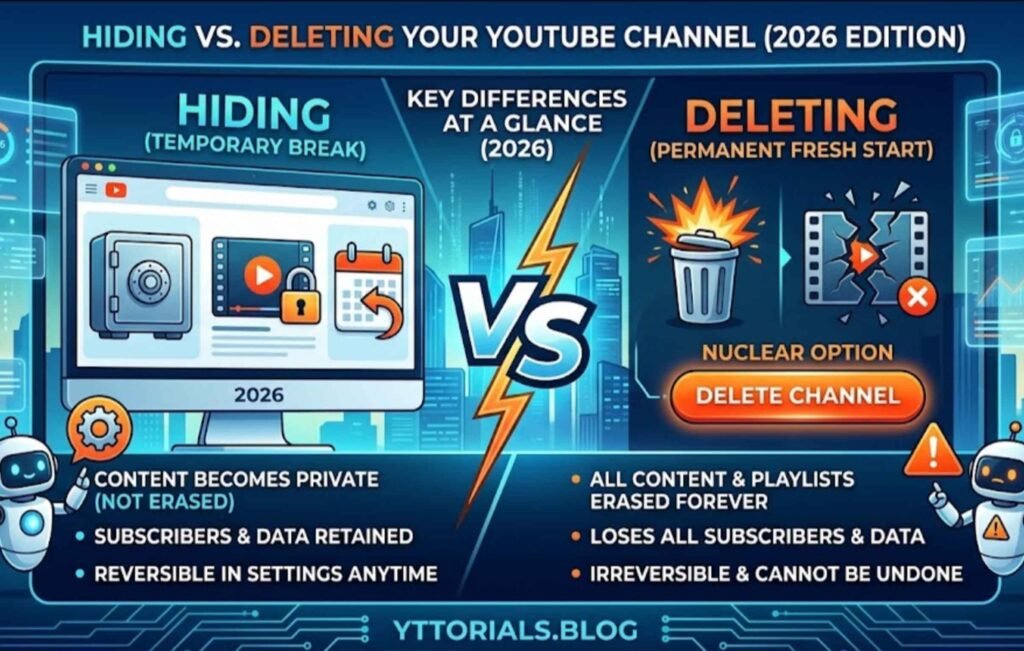
Before you click that final button, you must understand what each option does. Hiding your channel is like putting your content in a storage unit. Your videos, likes, and subscriptions become private. However, your channel name and data still exist on Google’s servers. This is perfect if you are feeling burnt out but might want to return later.
On the other hand, deleting your channel is permanent. Once you confirm this action, your videos, comments, messages, and playlists are gone forever. Even if you change your mind next week, YouTube usually cannot recover a deleted channel. Consequently, you should always back up your favorite videos to a hard drive or cloud storage before proceeding.
Key Differences at a Glance
- Hiding: Makes content private; saves your subscribers; reversible.
- Deleting: Erases everything; loses all subscribers; irreversible.
If you are unsure which path to take, it might be helpful to read about how to start a YouTube channel again. Sometimes, a fresh perspective makes you realize you just need a new strategy rather than a total deletion.
<a name=”google-safety”></a>
Why Your Google Account Stays Safe
One of the biggest fears creators have is losing their email. Deleting a YouTube channel does not delete your Google Account. This means your Gmail, Google Drive, and Google Photos will remain untouched. You can still log into your computer and use your other apps as if nothing happened.
Specifically, you are only removing the “YouTube Service” from your profile. However, there is a small catch. If you have a YouTube TV subscription or a YouTube Premium membership tied specifically to that channel profile, those services might be affected. Furthermore, deleting a channel can occasionally disrupt access to DVR recordings if they were saved under that specific profile. According to Google Support, you should verify your active subscriptions before making any permanent changes to avoid billing errors.
How to Hide Your YouTube Channel in 2026 (Desktop)
If you are using a computer, the process is very straightforward. YouTube has kept the “Advanced Settings” menu as the primary hub for these changes. Consequently, you will need to access the “back end” of your channel to find the right toggles.
Steps via YouTube Studio
- Sign in to YouTube Studio: Open your preferred browser and go to studio.youtube.com.
- Open Settings: Look at the bottom-left corner of your dashboard. Click the Gear icon labeled “Settings.”
- Navigate to Channel: In the pop-up window, click on the Channel tab on the left side.
- Select Advanced Settings: Click the middle tab at the top labeled Advanced Settings.
- Remove YouTube Content: Scroll all the way to the bottom. Under the “Other Settings” section, click Remove YouTube Content.
- Verify Your Identity: For security, Google will ask you to enter your password or use a passkey.
- Choose Hide: Click on the option that says “I want to hide my channel.”
- Confirm: Check the boxes that explain what will be hidden. Finally, click the blue Hide My Channel button.
Steps via the Main YouTube Site
Alternatively, you might not want to go into the Studio. You can still reach these settings from the main YouTube homepage.
- Click your Profile Picture in the top right.
- Select Settings from the dropdown menu.
- On the left-hand sidebar, click Advanced settings.
- Select Delete channel. Do not worry; this button takes you to the page where you can choose between hiding and deleting.
By doing this, your channel name, videos, and likes will no longer appear in search results. However, keep in mind that your comments will be permanently deleted even if you only hide the channel. Specifically, this is a common mistake creators make, so be sure you are okay with losing those community interactions.
How to Permanently Delete Your YouTube Channel (Desktop)
Sometimes, you just want a clean slate. Deleting a channel is the most effective way to remove your history from the platform. Because this is so final, YouTube makes you jump through a few extra hoops to ensure you are certain. Specifically, you will be asked to manually type your channel name or email to confirm the action.
Using YouTube Studio Settings
- Go to YouTube Studio: Just like hiding, start by logging into your dashboard.
- Access Advanced Settings: Click Settings > Channel > Advanced Settings.
- Click Remove YouTube Content: This link will open a new browser tab.
- Identity Check: Enter your credentials to prove you are the owner.
- Select Permanent Deletion: Choose the second option: “I want to permanently delete my content.”
- Review the Impact: YouTube will show a list of everything that will be erased. This includes your videos, your subscriptions to other channels, and your watch history.
- Confirm the Deletion: Check the boxes to acknowledge that this cannot be undone.
- Type Your Email Address: As a final safety check, YouTube will ask you to type in your email address exactly as it appears.
- Final Click: Click Delete My Content.
After you finish, it may take a few moments for the data to disappear. In some cases, if you have thousands of videos, it might take up to 48 hours for the channel to fully vanish from search results. For more information on why you should think twice, check out this guide on why you don’t delete your YouTube videos before closing the whole shop.
How to Manage Your Channel on Mobile (iPhone & Android)
In 2026, most creators manage their channels directly from their phones. While the YouTube Studio app is great for analytics, it often restricts deep account settings like deletion. To get the job done on a mobile device, you have two main methods. Consequently, you must choose the one that works best for your specific device.
The App Settings Method
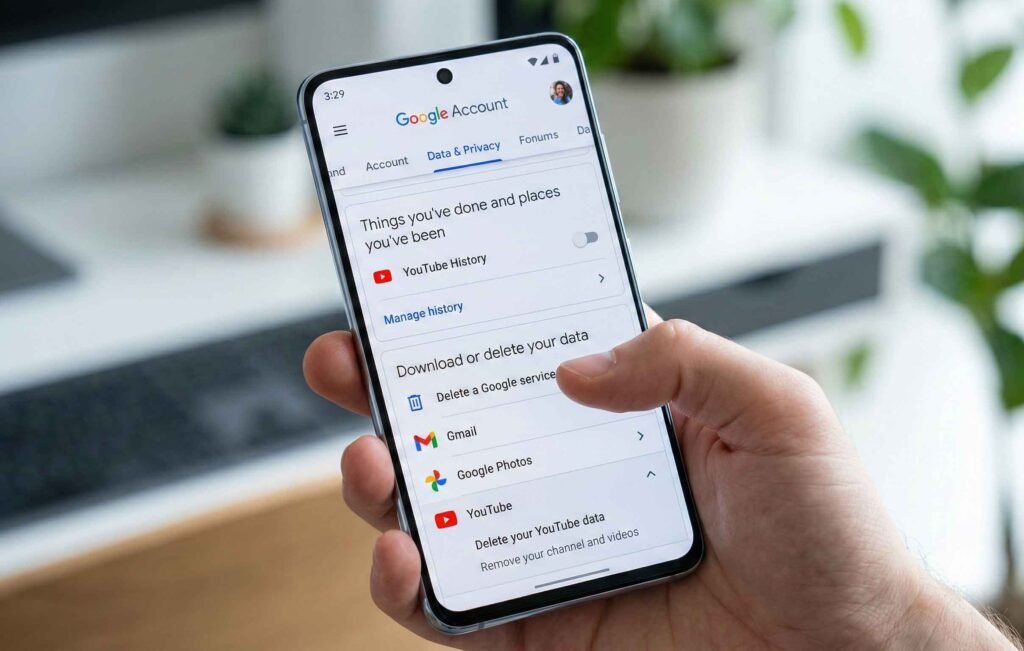
This is the easiest way for most iPhone and Android users. Since your channel is tied to your Google Service list, you can manage it through your account settings.
- Open the YouTube App: Ensure you are logged into the channel you want to remove.
- Tap Your Profile: Tap the “You” tab or your profile picture in the bottom right corner.
- Google Account: Tap the button that says Google Account (or “Manage your Google Account”).
- Data & Privacy: Swipe over to the Data & Privacy tab.
- Find “Delete a Google Service”: Scroll down until you see the section for “Download or delete your data.” Tap Delete a Google service.
- Sign In: Use your FaceID, fingerprint, or password to continue.
- Select YouTube: You will see a list of services like Gmail and YouTube. Tap the Trash Can icon next to YouTube.
- Choose Your Option: Select either “I want to hide my channel” or “I want to permanently delete my content” and follow the prompts.
The Browser Workaround
If the app settings are confusing, you can use the “Desktop Site” feature on your phone’s browser. This gives you the exact same interface as a computer.
- Open Chrome or Safari: Go to studio.youtube.com.
- Request Desktop Site: In your browser settings (usually the three dots or the “AA” icon), select Request Desktop Site.
- Follow Desktop Steps: Now that you see the full version of YouTube Studio, follow the desktop instructions mentioned earlier in this post.
Critical Impacts: What Happens to YouTube TV and Premium?
When you delete a channel, the ripple effect can be surprising. Specifically, if you are a subscriber to YouTube TV, your account is generally safe because it is tied to your Google Identity. However, if your YouTube TV account was set up using a specific “Brand Account” that you are now deleting, you might lose access to your DVR recordings and custom settings. Therefore, you should always check which sub-account holds your subscription.
Furthermore, any paid memberships like Channel Memberships to other creators will be canceled. If you have paid for movies or shows on YouTube, those usually stay with your Google Account, but you should verify this in your “Purchases and Memberships” tab. According to the Electronic Frontier Foundation (EFF), digital rights management (DRM) can sometimes make moving purchases between deleted profiles difficult. Consequently, you should ensure your library is safe before proceeding.
Financial Implications of Deletion
If you have a balance in your AdSense account, deleting your channel could complicate your final payout. Specifically, you must ensure your tax information and payment methods are current. Furthermore, any active disputes or copyright claims on the channel will still be tied to your identity, so deleting the channel does not magically make those legal issues disappear.
Important Pre-Deletion Checklist
Because deleting a channel is permanent, you should perform a quick audit of your account. Do not rush this process. Instead, take a day to think it over. Specifically, follow these steps to ensure you don’t lose anything valuable:
- Download Your Data: Use Google Takeout to save a copy of all your videos and comments.
- Check Your Revenue: If you are in the YouTube Partner Program, make sure your final payout has been processed in AdSense.
- Notify Your Fans: If you have a community, post a final update so they know where to find you next.
- Audit Linked Apps: Many third-party tools (like VidIQ or TubeBuddy) are linked to your channel. Revoke their access in your Google security settings.
Better Alternatives to Deletion
Before you pull the trigger, consider if there is a middle ground. Many creators delete their channels because they are unhappy with their current niche. However, there are ways to pivot without losing your hard-earned history. Specifically, rebranding is often a better choice than starting from zero.
- Unlist Your Videos: This keeps the views and data but hides the videos from the public. It is a great way to “clean up” without losing the proof of your work.
- Rebrand: You can change your channel name and handle without losing your subscribers. In 2026, YouTube allows you to change your handle twice every 14 days. Consequently, you can test new names without permanent risk.
- Take a Hiatus: Simply stop uploading. You don’t owe the internet a reason for your absence. Sometimes, a six-month break is all you need to feel creative again.
Ultimately, the choice is yours. If you want a fresh start in 2026, deleting is a valid option. Just make sure you have saved what matters to you first.
Conclusion
Managing your online presence is a vital skill in the modern world. Whether you choose to hide your channel for a while or delete it to start a new chapter, the steps are simple if you know where to look.
Specifically, remember to double-check which account you are logged into so you don’t accidentally delete the wrong channel! Furthermore, keep your Google Account security updated to prevent unauthorized changes to your content.
If you found this guide helpful and want to stay updated on the latest YouTube changes, make sure to subscribe to the YT Torials newsletter at yttorials.blog/newsletter/.
We provide weekly tips to help you master the platform. Also, don’t forget to subscribe to the YT Torials YouTube page at youtube.com/@yttorials for visual walk-throughs and expert advice.

No responses yet