In today’s digital world, many creators realize their YouTube journey needs to evolve. What started as a personal hobby often grows into a professional business. When that happens, your personal “Google Account” channel might hold you back.
The solution is switching to a Brand Account. This simple change allows you to separate your personal identity from your business, add team members, and secure your channel’s future.
This guide will explain why you should switch, what you need to know before you click “move,” and the exact steps to make the transition smooth
Why switch to a Brand Account?
Before we look at the technical steps, let’s explore the benefits. Why does this matter?
Flexibility: You are not locked into one name or one email. If you ever want to sell your channel or hand it over to a new owner, a Brand Account makes that possible.
Team Management: A Brand Account allows multiple people to manage the channel. You can add an editor or a manager without giving them your personal Gmail password. This is safer and more professional.
Privacy: It separates your personal life from your business. Your “business channel” gets its own identity, while your personal Google account stays private behind the scenes.
What to check before you convert
Before you begin the process of switching your personal channel to a Brand Account, it’s essential to make sure you’re eligible, prepared, and aware of potential risks.
Ownership and access
- Ensure you are signed in with the Google account that owns the YouTube channel you want to convert. You must be the channel owner, not just a manager.
- Make sure there are no pending live streams or premieres scheduled. Some guides note that this may interfere with the move.
Back up important data
While YouTube claims that your videos, subscribers, views, etc will transfer, there are elements you may lose (e.g., watch/search history, comments, likes) depending on the method. It’s wise to download or record important analytics, custom URLs, or configuration details first.
Confirm whether you already have a Brand Account
You might already have a Brand Account associated with your Google account. The move is easier if you already do. You can check by going to myaccount.google.com/brandaccounts and seeing what Brand Accounts are listed under your Google account.
Plan for the timing
Because some account settings may be temporarily unavailable during migration, schedule the conversion at a time when minimal disruption is acceptable (i.e., not during a live event).
Step-by-step: Converting your personal YouTube channel to a Brand Account
Here’s a detailed walkthrough of how to perform the conversion. Note: the interface may vary slightly depending on region and updates, so always reference the official YouTube/Google support links if needed. support.google.com+1
1. Sign in to YouTube with your Google account
Go to YouTube (youtube.com) and sign in using the Google account that owns the personal channel you want to convert. Make sure you clearly identify the channel you’re converting—especially if you have multiple channels or switch accounts often.
2. Check your channel type
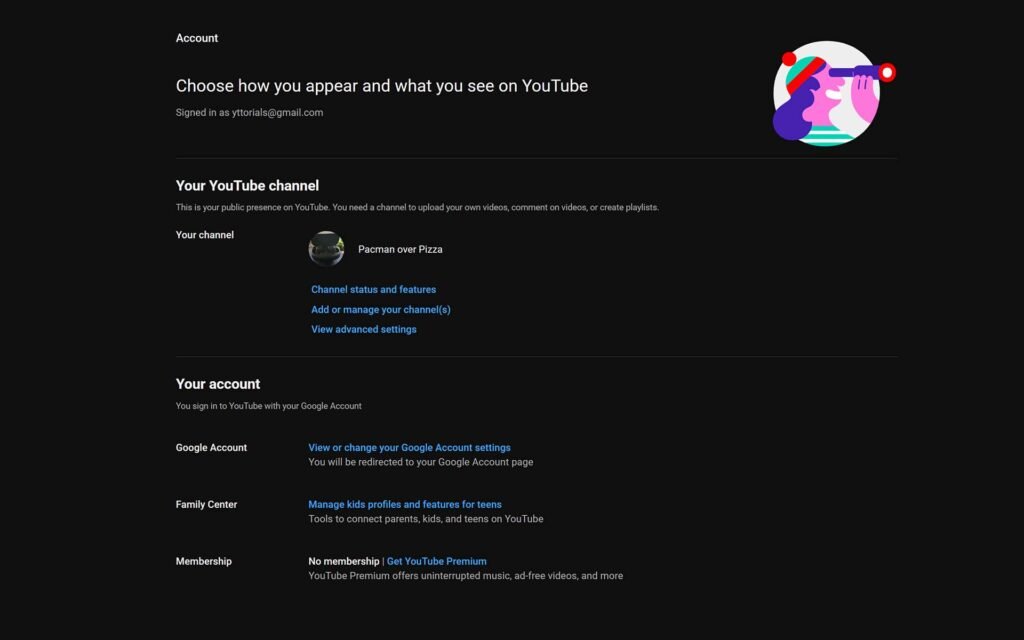
Visit your channel list (you can get there via your profile icon > “Switch account” or “Your channel(s)”). Check if your channel is already a Brand Account. If you go to https://myaccount.google.com/brandaccounts you can see whether your Google account has any Brand Accounts. If it’s already a brand account, you may not need to convert.
3. Create a Brand Account (if you don’t already have one)
If you don’t already have a Brand Account, you’ll need to create one. Steps:
- On YouTube, go to channel list > “Create a new channel”.
- Enter the name you want for your Brand Account (typically your business or channel brand name).
- Verify your account if required.
- After creation, you’ll see the new channel listed alongside your existing personal channel when you switch accounts.
4. Initiate the “Move channel” process
Once your Brand Account exists and you’re signed in, you should now move your personal channel to the Brand Account. Steps:
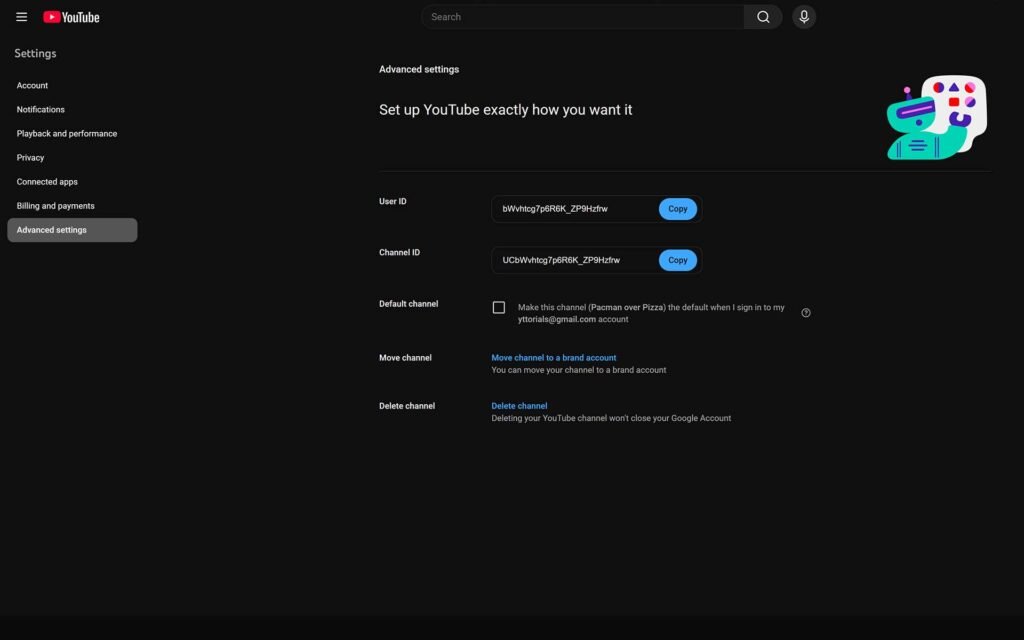
- Click your profile picture in the top right > Settings.
- In YouTube Studio or your account settings, look for “Advanced settings” or “Advanced” under the “Your channel” section.
- Under Advanced settings, find “Move channel to a brand account” (or similar wording).
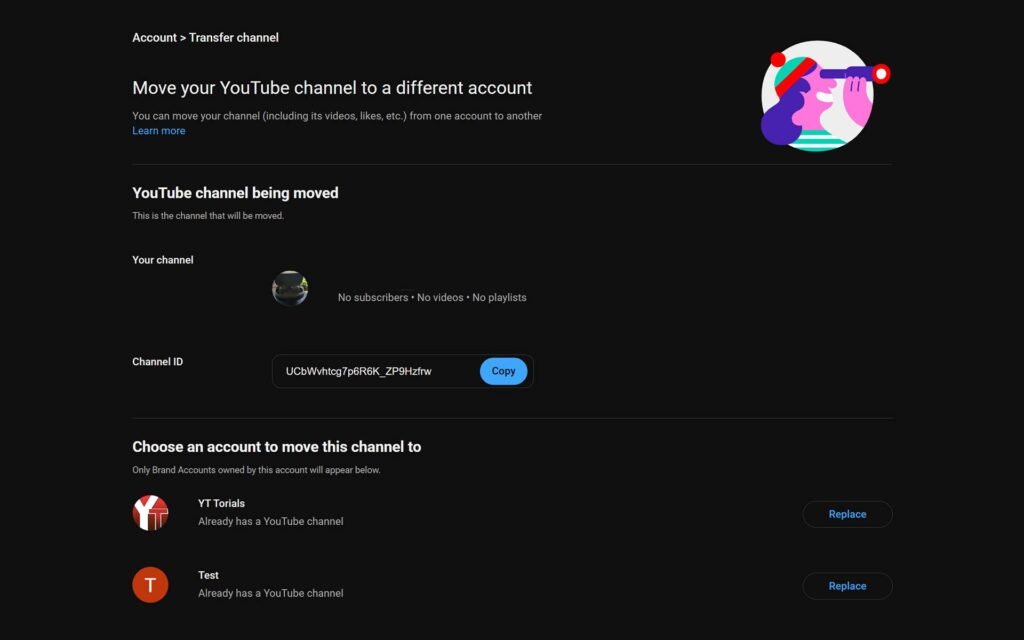
5. Select the target Brand Account
When you click “Move channel to a brand account”, you’ll be presented with a list of Brand Accounts associated with your Google account. Choose the Brand Account you created or want to transfer into. Be careful: if the Brand Account already has a channel associated with it, you may be asked whether to replace it.
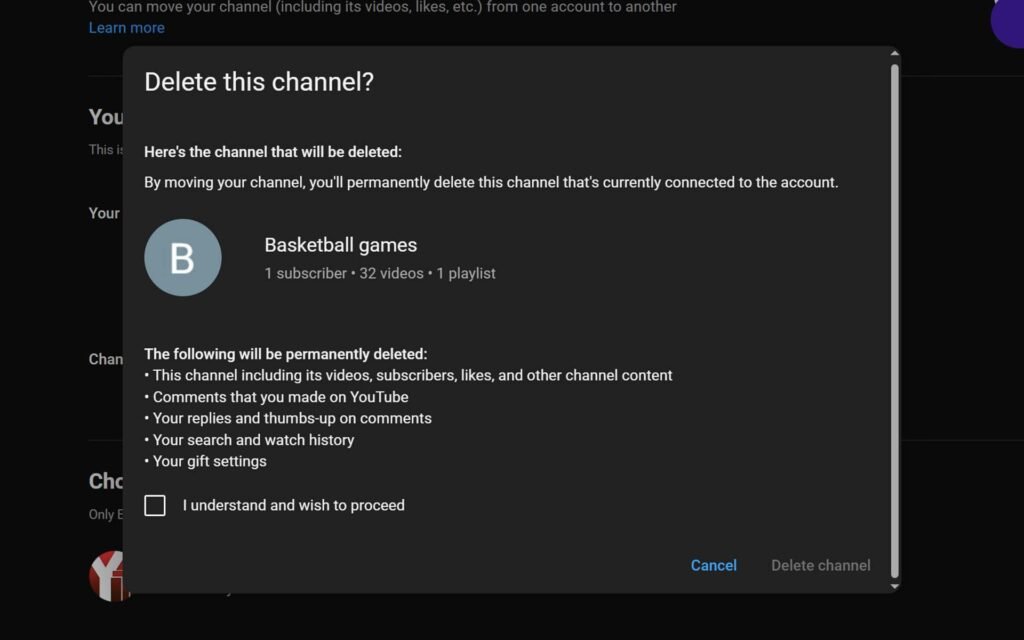
6. Confirm the move and understand what you’ll lose
YouTube will display a warning summarising what will not transfer (for example: watch and search history, some comments & replies, maybe custom URLs).
You will often be required to check a box acknowledging “I understand and wish to proceed”. Then you click a button like “Move channel”.
7. Wait for the process to finish
The migration might take a few minutes. After the process completes, your personal channel’s videos, subscribers and core content will now live under the Brand Account. Sign out and sign back in if needed, then switch to the newly converted channel to verify everything.
8. Post-migration cleanup & configuration
Once the move is complete, there are several things you should do:
- Switch to the Brand Account via account switcher and update branding: channel name, description, banner, profile picture, links, etc.
- Set up permissions: Go to Settings > Permissions (or Google Account > Brand Accounts > Manage permissions) and invite team members or managers if needed. Assign proper roles (Owner, Manager, Editor) to each person.
- Check custom URL: If you had a custom channel URL, you may need to claim it again under the new Brand Account or update your links.
- Review SEO, playlists, links: make sure your brand channel reflects your desired identity and that links on your website/social profiles have been updated.
- Set up two-factor authentication (2FA) and security settings for your Google account and Brand Account. This helps protect the brand’s access.
What you retain and what you may lose
It’s important to understand what carries over and what may not, so you can manage expectations and ensure you don’t lose critical elements.
What you keep (in most cases)
Your videos and uploads- the core channel content should transfer to the Brand Account.
- Your subscribers- typically they will follow the channel after migration, meaning you don’t have to rebuild your audience.
- Your view counts and video stats- views and watch time are preserved.
- Your channel URL (if custom URL is not disrupted)- though caution is advised (see below).
What you may lose or need to re-configure
- Watch and search history: The personal habits tied to your personal account may not transfer.
- Comments and replies you’ve made (sometimes lost) or your likes/dislikes: Some sources note you might lose these interactions.
- Custom URL: If you had a custom URL for your channel, after moving to a Brand Account you may need to re-claim or reset it. Some articles claim you may lose the custom URL and have to wait or meet criteria to re-set one.
- Scheduled live streams or premieres: If you have any active scheduled live content in the personal channel, it’s recommended to cancel or complete them before migration to avoid disruption.
Potential pitfalls & tips to avoid issues
Changing channel ownership or structure is not without risk. Here are a few common pitfalls and how to minimise them.
Risk of losing access or making the wrong move
Some creators have reported that if done wrongly, the channel becomes unlinked or the personal Google account loses ownership. One article warns “There have been instances where creators tried to move personal channels to brand accounts and ended up having their personal channel deleted.”
Tip: Double-check you are working in the correct Google account and moving the correct channel. Ideally, take screenshots or backup your data first.
Custom URL constraints
If you rely on a custom URL for your brand presence (for example, youtube.com/@BrandName), migrating might disrupt it. Some guidelines say you may lose the custom URL and have to apply for a new one, and that custom URL eligibility may depend on channel age, subscribers, etc.
Tip: If retaining the custom URL is crucial, plan for a brief downtime or duplication of the old channel URL redirect.
Confusion with multiple accounts/channels
If you already have multiple YouTube channels or Brand Accounts under your Google account, it’s easy to confuse which channel is linked where.
Tip: Before migration, label your channels clearly (e.g., change banner temporarily to “_TEST” or prefix name) so you know exactly what you are moving.
Scheduling/timing issues
If you’re running scheduled uploads, premieres, or live streams, migrating at the wrong time could pause or cancel them.
Tip: Choose a low-traffic period for migration, cancel or finish any scheduled events before you start.
When not to convert (or when to wait)
While many channels will benefit from converting to a Brand Account, there are instances where you might decide to wait or not convert:
- If you’re a solo creator and don’t foresee needing multiple managers or team access, and you’re comfortable using the personal channel structure, then you might not need the extra complexity.
- If you have many scheduled events, live streams, or custom URLs that you rely on and you’re not in a low-risk time to perform a migration, you might delay until you have a quiet period.
- If the channel has critical integration with other platforms (e.g., embedded links, custom URL across marketing materials) and you’re not prepared to update them, you may want to plan the migration and communicate with your audience ahead of time.
Next Steps
Now that you have successfully switched to a Brand Account, you are ready for the next big step: building your dream team. However, inviting strangers or freelancers to access your channel can be intimidating. You definitely don’t want to accidentally give a new video editor the power to delete your entire channel!
Understanding exactly who to trust and which role to assign them is crucial for your security. Therefore, it is vital to learn the difference between a “Manager,” an “Editor,” and a “Viewer” before you send out those invites.
We will break down exactly how to grant access safely in our next guide. To ensure you don’t miss it, subscribe to the YT Torials newsletter today. Also, be sure to subscribe to the YT Torials YouTube page for visual walkthroughs on keeping your account secure while you grow.
Related Posts
How to Manage and Delete YouTube Comments
How to switch YouTube Personal Channel to a Brand Account
How to Safely Hide or Delete Your YouTube Channel
The Easy Guide to Add Managers and Editors to Your YouTube Channel
How to Disable YouTube’s AI Video and Audio Enhancements
No responses yet