Captions aren’t just for accessibility anymore; they’re vital for getting your videos seen and understood. They help people watching without sound, make your content discoverable through search, and include everyone. While Adobe Premiere Pro has its own caption tools, special plugins can really speed things up and add cool features like animated text and better accuracy.
If you’re tired of slow captioning and want your videos to look more professional, here are some of the top caption plugins for Premiere Pro in 2026.
Premiere Pro’s Own Tools: A Good Start
First, let’s talk about what Premiere Pro can do on its own. It has a Speech to Text feature (in it’s later versions) that listens to your audio and types out what’s being said. Then, you can turn that into captions and change their look in the Essential Graphics panel. For simple captions, this might be enough, especially with recent updates.
But if you want more control, smoother animations, or better accuracy, that’s when you’ll need a plugin.
Top Caption Plugins to Boost Your Workflow
Here are some of the best Premiere Pro caption plugins that offer more power:

1. Cutback
Best For: Speed and Professional Workflows
Cutback has quickly become a favorite for professional editors because it is incredibly fast. Unlike other tools that use heavy files (called MOGRTs) that can slow down your computer, Cutback uses Premiere Pro’s native graphic clips. This means your captions appear instantly, and your video renders much quicker.
- Highly Accurate & Fast: It listens well and works quickly, saving you time on the boring stuff.
- Native Graphic Clips: Because it uses built-in graphics, you don’t have to wait for slow files to load.
- Live Previews: You can see how your animated captions will look almost instantly without waiting for a render.
- Captions Behind Objects: This is a unique “pro” feature. You can easily place text behind a person or object in your video for a cool 3D depth effect.
- Extra Tools: It can also remove silences from your audio and help you find B-roll (extra footage) to cover cuts.
Downside: It doesn’t have automatic emoji support yet, so you have to add those manually if you want them.
2. Captioneer
Best For: Viral, Animated Styles
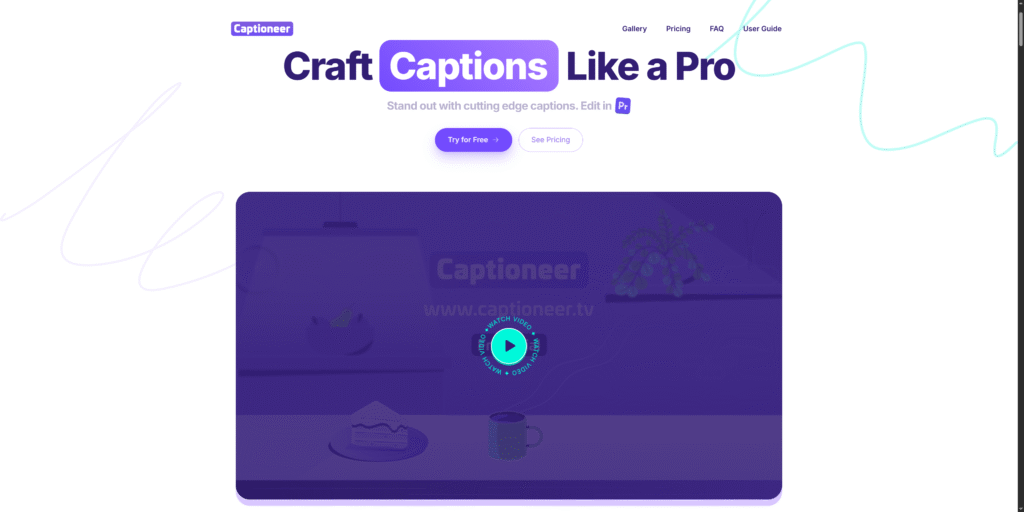
If you love those colorful, bouncy subtitles you see on TikTok and Instagram Reels, Captioneer is a fantastic choice. It is built to make creating dynamic, moving captions fast and easy, right inside your familiar editing workspace.
- Animated Subtitles: Perfect for making your captions “pop” and keeping viewers glued to the screen.
- Works Inside Premiere: It acts like a bridge. You pick a design, and it applies it to your timeline using Premiere’s own transcription.
- Customizable: It comes with ready-to-use styles, but you can also save your own brand colors and fonts.
Note: to learn more on branding, check out this guide here.
- One-Click Presets: Apply a style to your whole video in seconds.
Downside: It relies on Premiere Pro’s own transcription engine. If Premiere makes a mistake with a word, Captioneer will too, so you still need to proofread.

3. AutoCut
Best For: The “All-in-One” AI Editor
AutoCut is a powerhouse. It is not just a caption plugin; it is a full editing assistant. If you are a content creator who needs to turn a long podcast into short clips, this is likely the tool for you. Its AutoCaptions feature is excellent for animating text word-by-word.
- Word-by-Word Animation: Creates those eye-catching “karaoke” captions that highlight the current word being spoken.
- AutoCut Silences: It automatically cuts out the quiet pauses in your video, making your edit sound punchy and fast.
- Many Languages: It can create and translate captions in over 80 languages, which is great for reaching a global audience.
- AutoZoom: It can automatically zoom in on the speaker to keep the video visually interesting.
Downside: The previews can sometimes be a little clunky (showing a screen capture instead of a live render), and editing the text after it has been generated can be a bit tricky compared to other tools.

4. Brevidy
Best For: Social Media Clips & Stock Assets
Brevidy is a complete solution for creators who focus on short-form content. It features smart AI tools for timing and translation, but it also includes a library of stock media (like GIFs and images) that you can drop right into your video.
- Trendy Animations: The built-in styles are designed to look like the most popular videos on social media right now.
- AI-Powered Accuracy: It uses advanced AI for super accurate transcriptions and translations.
- Re-Time Tool: This unique feature lets you adjust your edits easily if the captions don’t match the beat of the video perfectly.
- Stock Media Browser: You can search for and add stickers or stock footage without leaving Premiere Pro.
Downside: It uses a credit system for pricing, which some users find confusing. Also, heavy projects with lots of Brevidy effects can sometimes slow down the export process.
5. Simon Says
Best For: Accuracy, Translation, and Teams
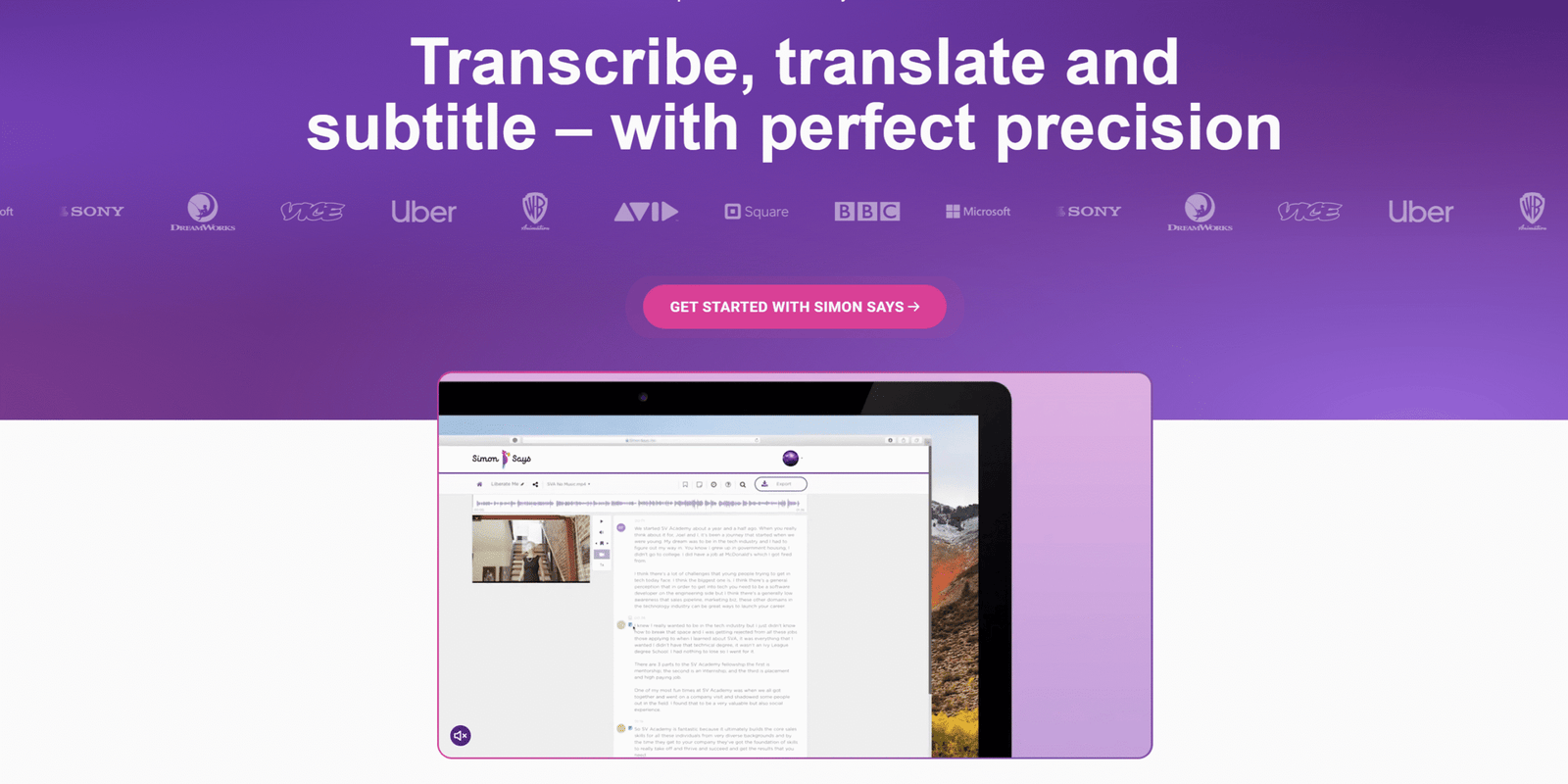
While not just a “flashy” animation plugin, Simon Says connects seamlessly with Premiere Pro and is the gold standard for accuracy. If you are working on a documentary, a film, or a corporate video where the text must be perfect, this is your tool.
- Highly Accurate Transcriptions: Known for having one of the most reliable AI engines in the industry.
- 100+ Languages: It supports a massive list of languages for both transcribing and translating.
- Privacy Options: It offers an “on-premise” solution. This means for sensitive projects (like legal videos), your data stays on your computer and isn’t sent to the cloud.
- Markers: It can export transcriptions as markers on your timeline, which helps you edit faster.
Downside: It is mainly a transcription service. It creates standard subtitles perfectly, but it lacks the one-click “bouncy text” animation features of plugins like Captioneer or Brevidy.
How to Pick the Right Plugin
Choosing the best plugin depends on what kind of videos you make. Here is a quick cheat sheet:
- For Speed and Efficiency: Choose Cutback. It is fast, professional, and doesn’t slow down your computer.
- For Social Media Style: Choose Captioneer or Brevidy. They have the best templates for TikTok and Reels.
- For AI Features & Podcasts: Choose AutoCut. It handles silences and zooms, making it great for “talking head” videos.
- For Translation & Security: Choose Simon Says. It is the safest bet for professional, multilingual projects.
Most of these plugins offer free trials. We highly recommend downloading two of them to see which one fits your editing style best.
Why Captions Matter More Than Ever
You might be thinking, “Can’t I just skip captions?” In 2026, the answer is no. According to recent data, a huge percentage of mobile video is watched with the sound off. If you don’t have text on the screen, those viewers will just scroll past.
Furthermore, search engines like Google and YouTube use captions to “read” your video. When you have accurate captions, it helps your video show up in search results when people look for topics you are talking about. To learn more about how video accessibility standards are evolving, you can check out the W3C Web Accessibility Initiative.
If you want to dive deeper into general editing tricks that keep viewers watching, check out our guide on advanced video editing tips. Or, if you are looking to improve your audio to match those crisp captions, read our article on fixing bad audio in Premiere Pro.
Conclusion
The right caption plugin can save you hours of work every week. Whether you are building a viral brand on social media or editing a serious documentary, there is a tool in 2026 that fits your needs. Don’t let the manual work of typing out text slow you down—automate it and get back to being creative.
For more tutorials, like this one on how to use transitions from mixkit to Premiere Pro, and editing hacks delivered straight to your inbox, subscribe to the YT Torials newsletter today!
Related Posts
Need Envato Elements Alternative? Here’s 5 Sites You’ll Love
Placeit Review: Pros, Cons, and Everything You Need to Know
Motion Array vs. Envato Elements: A Head-to-Head Comparison
Creative Fabrica: Pros, Cons, and Everything You Need to Know
Vecteezy Review 2026: Is It the Best Source for Free Vector Art?
Envato’s ImageGen: The New AI Art Tool You Need to Try?

No responses yet